
Enable tracking categories in Xero

To use tracking codes in UpSheets, enable them in Xero first.

Enable tracking in Xero

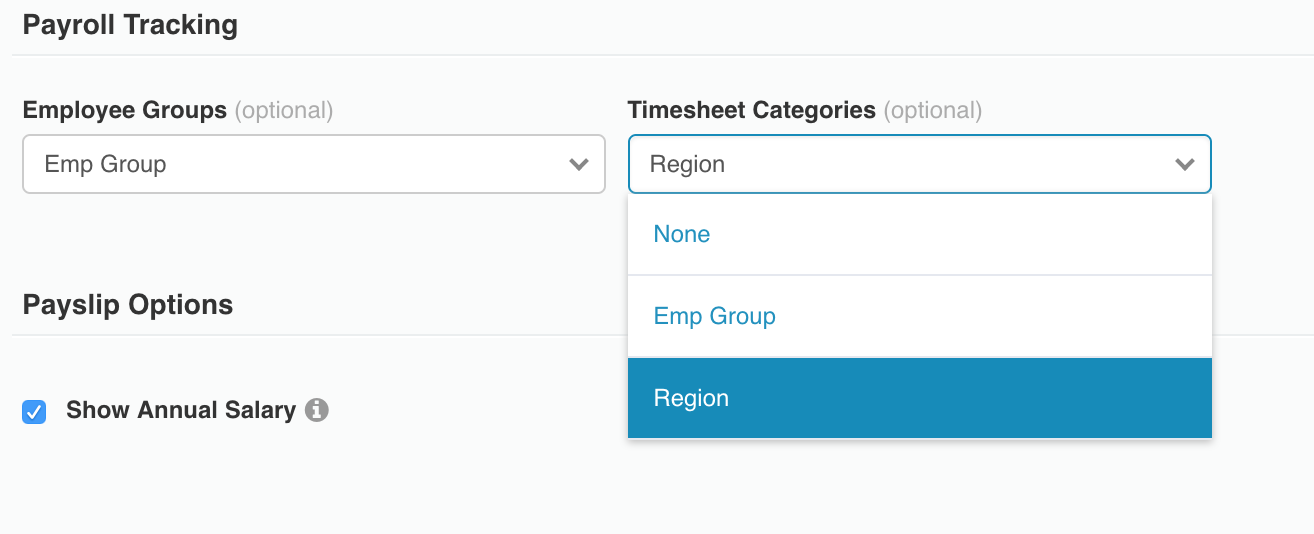
Select Payroll > Payroll Settings (from the top left). Under Payroll Tracking, choose the tracking code you want in the Timesheet Categories field and save.
24.png

Xero tracking codes setting in Payroll Settings

Refresh your organisation connection

After you enable tracking in Xero, refresh the organisation in UpSheets so the setting and tracking codes are picked up. You do not need to disconnect and reconnect. With the organisation selected in the organisation switcher, open the switcher menu and select Refresh Connection. Switching to the organisation from another organisation also refreshes its settings. Visiting Home does not reload tracking codes from Xero every time. If tracking codes are missing after you change them in Xero, use Refresh Connection. You can then select tracking codes when importing timesheets. Once tracking categories are enabled in Xero, every timesheet line must include a tracking code (in the file or as a default at import) so Xero validation succeeds. See Tracking Categories.