

Single Pay Item Column
The standard file format for importing data using UpSheets is one row per employee/date/type and a single column for hours. The Type column holds the Pay Items or Earnings Rates being imported. For other fields (tracking codes, names, and so on), each value you import must also sit in one column unless a dedicated feature says otherwise. See One Column Per Import Field. For payslips, this is the default format when you are not using multiple columns and you select File contains Earnings Rate on the Import screen.
For more on standard file formats, see:
Payroll File Formats (AU)
Payroll NZ & UK
Projects (Global)
Multiple Pay Item Columns
A common way many systems export data is to have a single row for each day and multiple columns for the Pay Items as shown below:
If your file is in a format similar to this, you can configure UpSheets to translate it into the standard format using the steps below.
Enable Multiple Pay Items
To enable multiple Pay Items, select Add Columns from the menu. You can enable up to 30 pay item columns. The select box lists all of the Pay Items available in Xero and selecting them will add them to the list below. You can include any pay items included in the list (including leave). To remove a Pay Item, click the X link (or select Clear All to remove them all).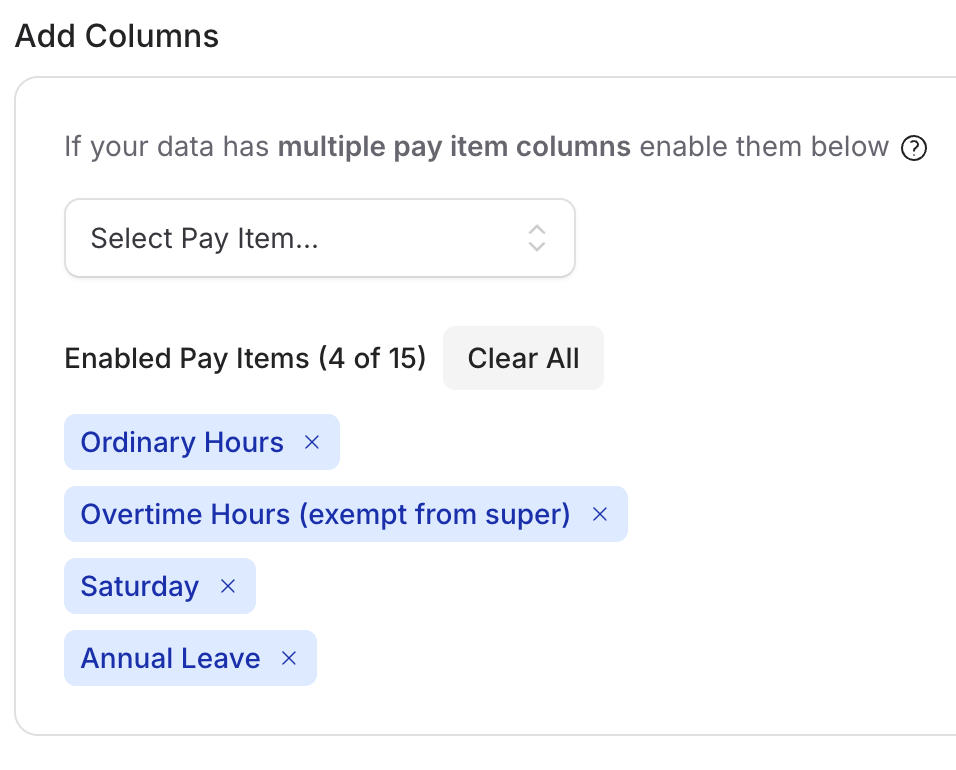
Add Columns to configure multiple pay item columns
Edit Defaults
For Australian organisations, Add Columns also includes an Edit Defaults option for pay items that need extra import settings.- Deductions: Choose whether the imported value should be treated as Fixed amount, Pretax %, or Posttax %.
- Leave accruals: Choose whether the imported value should use FIXEDHOURS or AUTO.
Import a file
When importing a file after setting up Add Columns, File contains multiple Earnings Rate columns will be the default value in the Earnings Rate field. To use horizontal mode, you must:- Define the required pay item columns in Add Columns.
- Import the file with File contains multiple Earnings Rate columns selected.
Type column format and ignores the multi-column setup.
Map Pay Items to Columns
Before validating the file, the enabled Pay Items can be mapped to the required columns. Each Pay Item may only be selected once and at least one of the enabled Pay Items must be selected to proceed.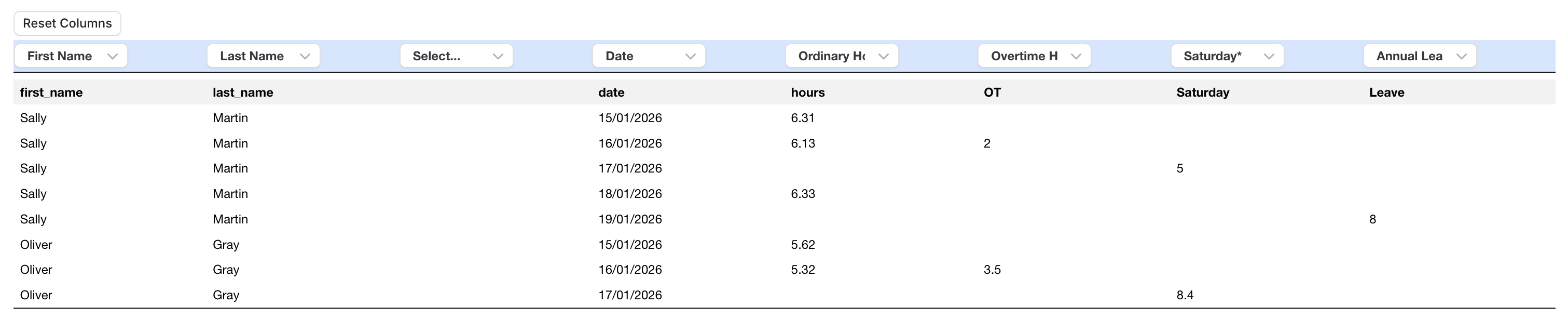
Mapping pay items to file columns before validation
Validate the file
When the file is validated, the data will automatically be translated into the required rows and can be edited/uploaded as usual. On the validation screen, the table can be wider than the viewport when you have many columns. Scroll horizontally to the right to see every column. For Australian payroll imports, the translated rows also use the selected pay item defaults automatically: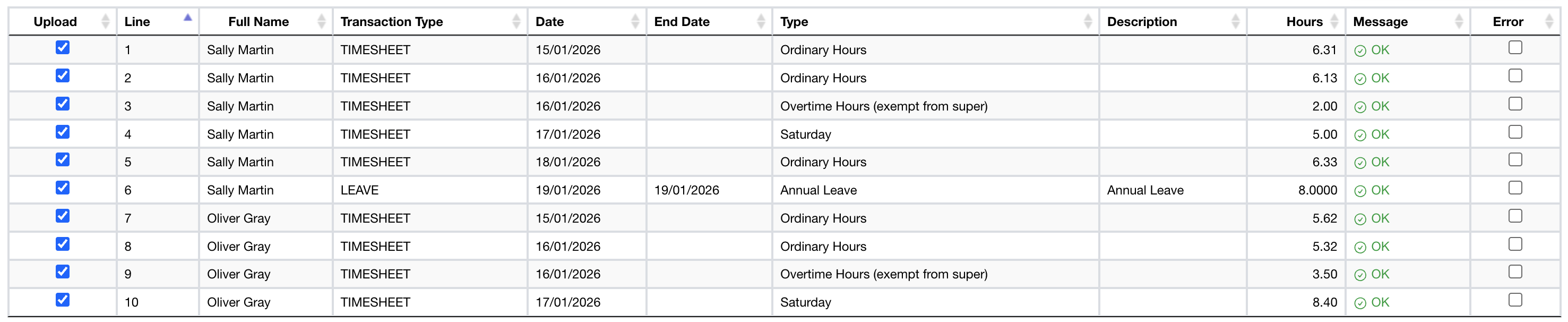
Validated data with multiple columns translated to rows
Type name cleanup during import
UpSheets cleans imported type names before validation so common punctuation and encoding issues do not show up in the process screen. For example, if a file containsPersonal (Sick/CarerÕs) Leave, it will be normalised to Personal (Sick/Carer's) Leave before matching and display.