

Creating and managing mappings
When uploading a file, you may see an error with a link to Create a Mapping. In Payroll, mapping is available for:- Employee
- Type (Earnings Rate / Pay Item)
- Tracking Code (if enabled in Xero)
- Projects
- Users
- Tasks
Task mappings
A task mapping with no project applies to every project. On the Mapping screen these show as All projects (legacy). Saving or editing a task mapping from a row in one project adds a rule for that project only. The all-projects mapping stays as it is, so other projects keep it. Deleting the project rule does not delete the all-projects mapping. The next validation uses the all-projects mapping for that project again. The same applies to task exclusions. An exclusion saved for one project removes that task only in that project. An older task exclusion with no project still applies everywhere. Mappings can also be created without loading a file by selecting Mapping from the menu.Create a Mapping
To create a mapping, click the link and select the value you want to map: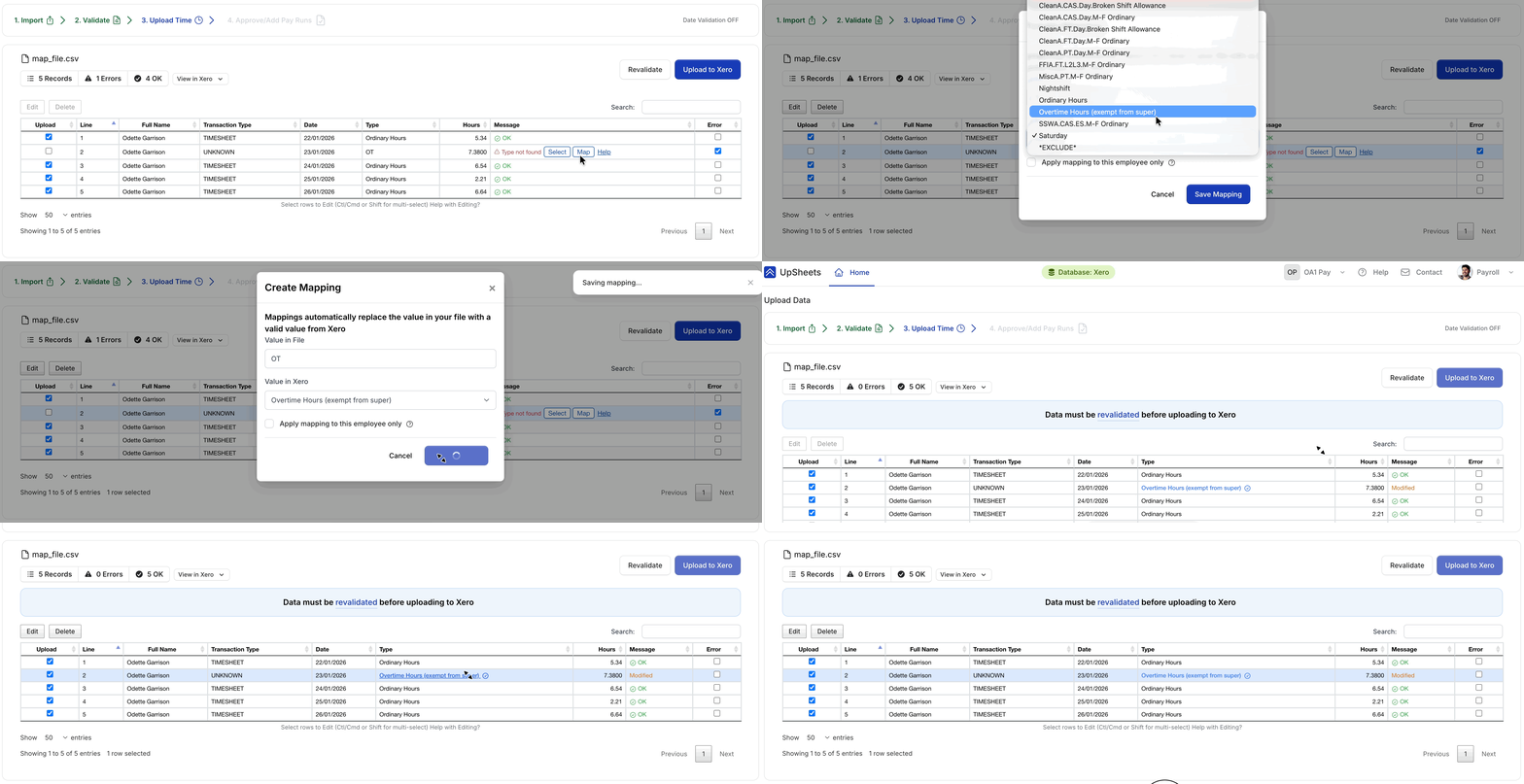
Adding a new mapping
Blank or empty file values
You can also create a mapping when the value in your file is missing. From Mapping in the menu, select Create Mapping, choose the Mapping type, leave File Value empty, and pick the Xero value to use instead. That applies to rows where the relevant column is blank or null.Only one mapping with an empty file value is allowed per mapping type for your organisation (for example, one empty Employee mapping and one empty Type mapping). If you need a different rule later, delete the existing mapping first.
Edit a Mapping
To edit a mapping, click the mapped value, select a new value and click Save Mapping. The new mapping will be used for the current and all future uploads (until the mapping is edited or deleted). Editing a task mapping from a project row follows the task mapping rules above.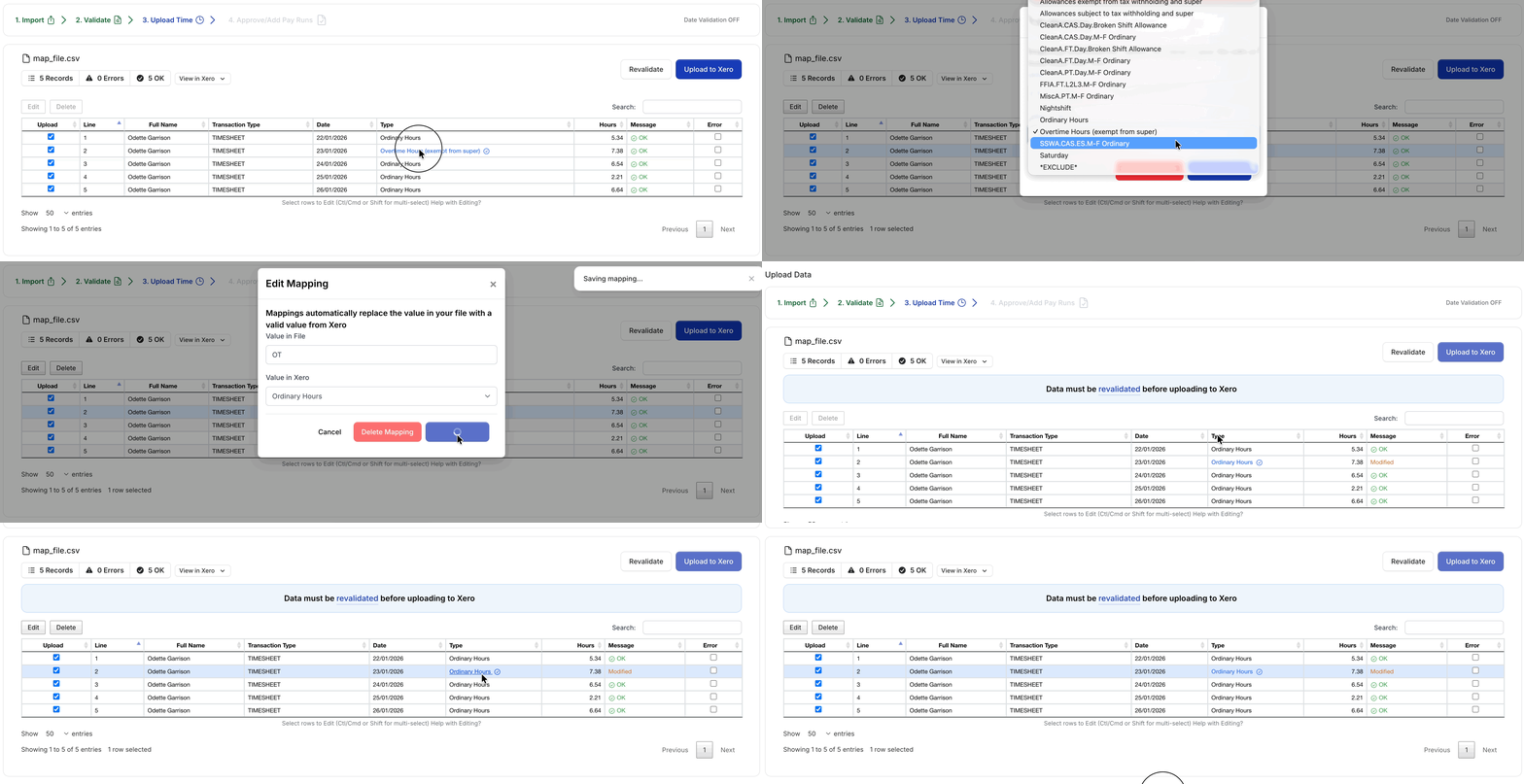
Editing an existing mapping
Invalid Mappings
A mapping can become invalid if the matching value is changed, archived, or removed in Xero. This can affect employees, earnings rates or pay items, tracking codes, projects, users, and tasks. When you validate a file, UpSheets checks mappings against the current values available in Xero. If a mapping is no longer valid, UpSheets removes it and shows an Invalid Mapping warning at the top of the upload page. The warning lists each removed mapping, for example:- Employee: O G was mapped to Oliver Gray
- Type / Earnings Rate: AAA (Oliver Gray) was mapped to AA.PT.M-F 9am-5pm
Mappings set to EXCLUDE are not removed by this check.
Excluding Lines
You may optionally exclude lines from your file if you don’t want to see or process them. To do so, select EXCLUDE from the dropdown menu. Any lines matching the excluded value will be removed from your file when it is validated. This can be useful if you have data in your file that does not need to be uploaded. In the example below, any lines where thetype is OT would be excluded.
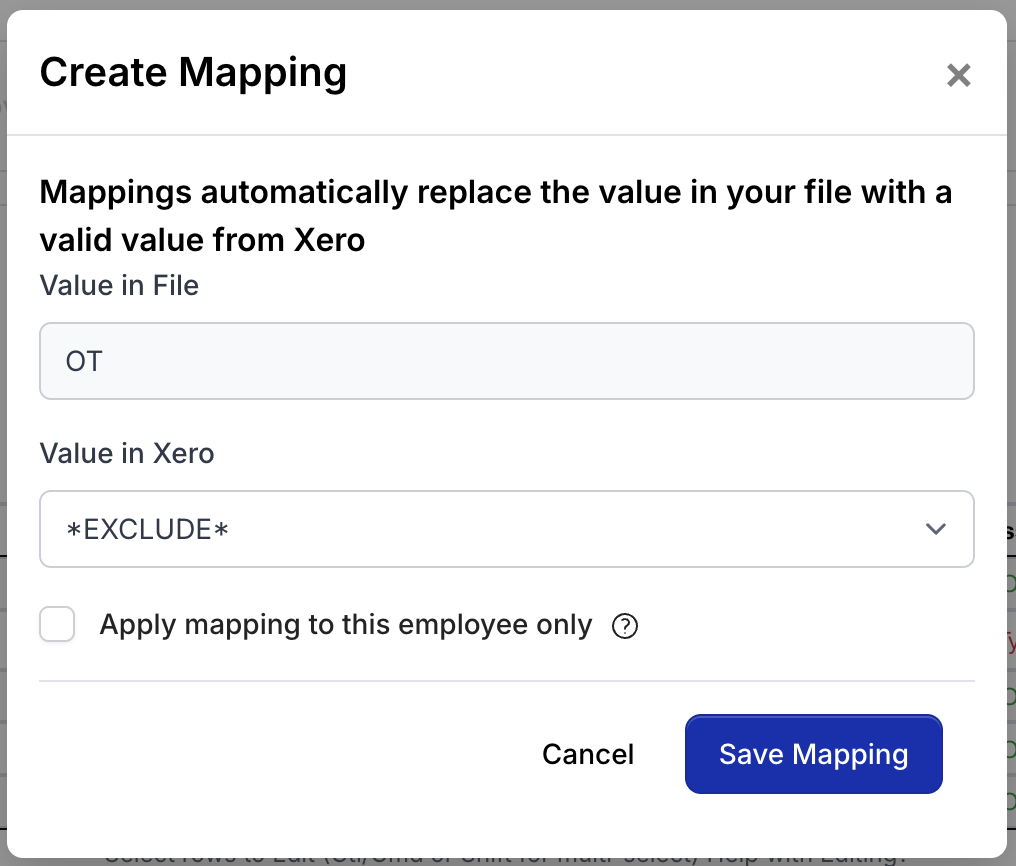
Exclude mapping link when importing
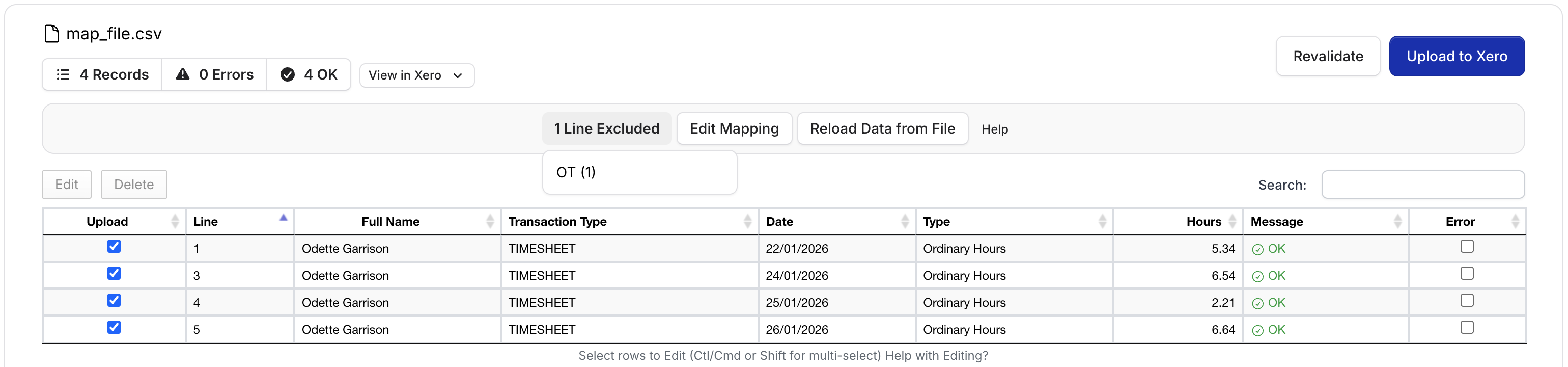
Excluded lines after mapping applied
Delete a Mapping
To delete a mapping, click the mapped value and click Delete Mapping. Deleting a task mapping removes only the rule shown on that row. If an all-projects task mapping still exists, the next validation uses it again.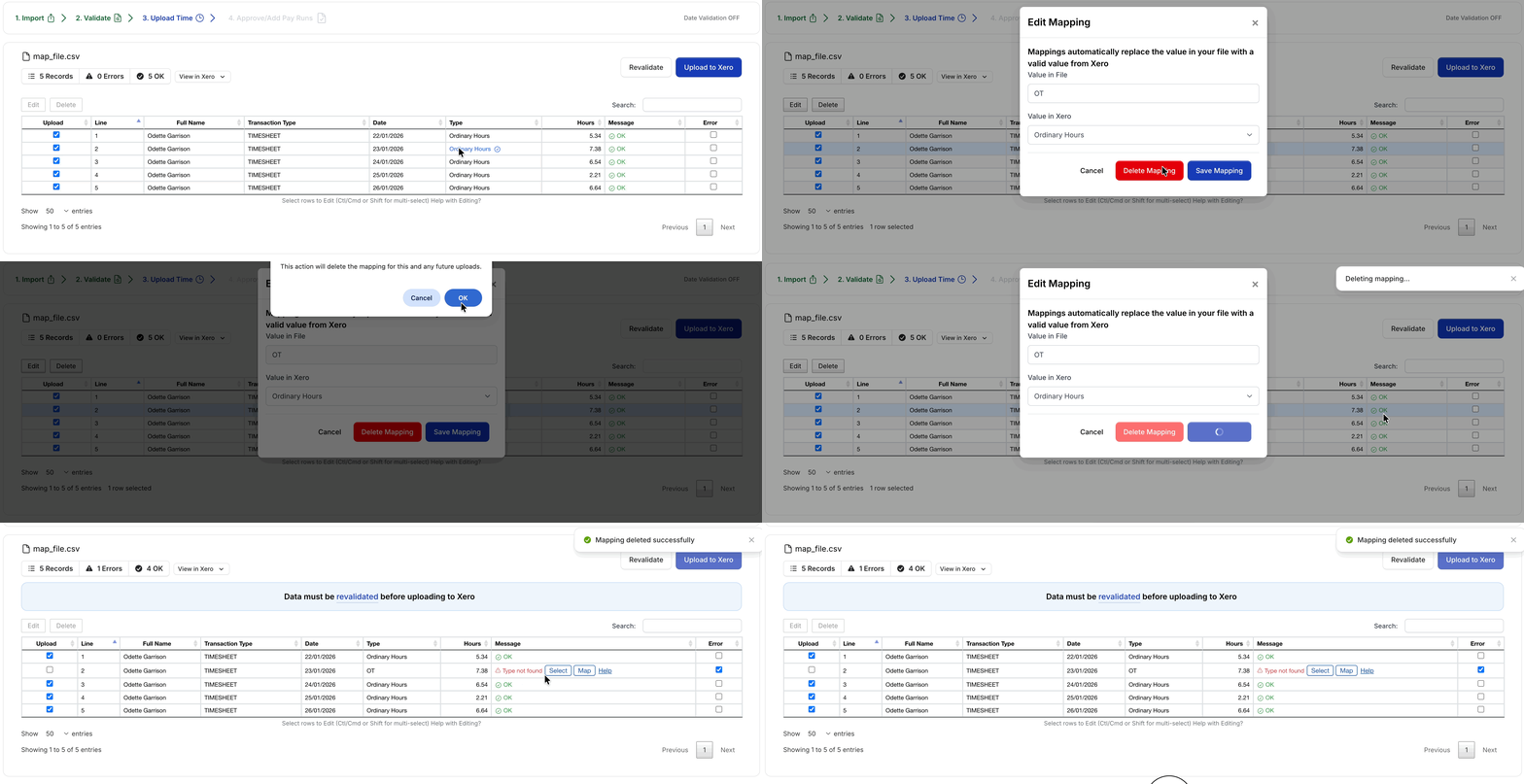
Deleting a mapping