

Automatically Exclude Lines
Some files contain rows of data that are either incomplete or do not need to be loaded for various reasons. UpSheets provides the ability to create mappings to automatically remove these lines when you validate your file.Methods
There are two ways to create Exclude Mappings:- Create an Exclude Mapping when importing a file
- Define an Exclude Mapping from the Mapping menu
Creating an Exclude Mapping
Select Mapping from the menu to setup mapping and exclusions.Excluding Empty Values
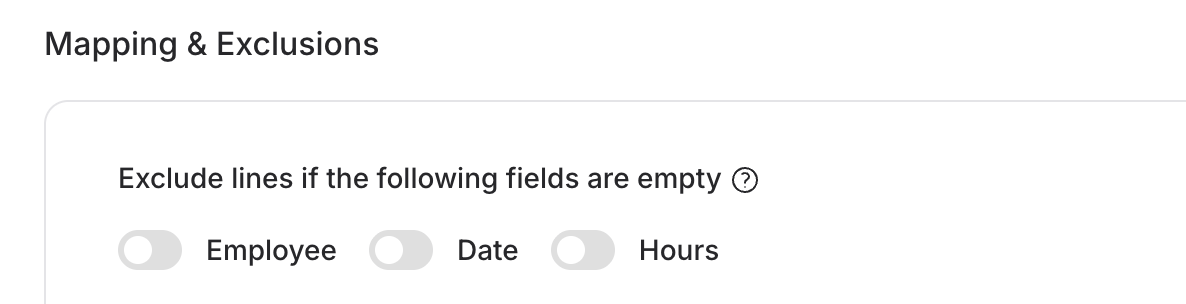
Exclusion switches for empty values
- Employee Name
- Date
- Hours
- Tracking Code (if enabled in Xero)
- Earnings lines, and NZ reimbursements, that are not Fixed Amount are removed when hours are empty or zero, before payslip-dependent checks such as a missing pay run.
- Deductions, super, and other known pay items are not removed by the Hours switch.
- Unknown types are removed only when hours are stored as zero. Empty hours on an unknown type are kept and still show the usual unable-to-determine error.
- Fixed Amount lines (the amount is in Rate, hours are blank) are not removed.
- Date and Tracking Code empty-value switches are still ignored on payslip-only files.
Excluding Specific Values
Specific values can also be excluded by:1
Create mapping
Select Create Mapping.
2
Select mapping type
Select the Mapping type to exclude (Employee, Type, Tracking Code, Project, User).
3
Enter file value
In the File Value field enter the value in your file to ignore.
4
Set exclude
Select *EXCLUDE* in the Xero Value field and click Save Mapping.
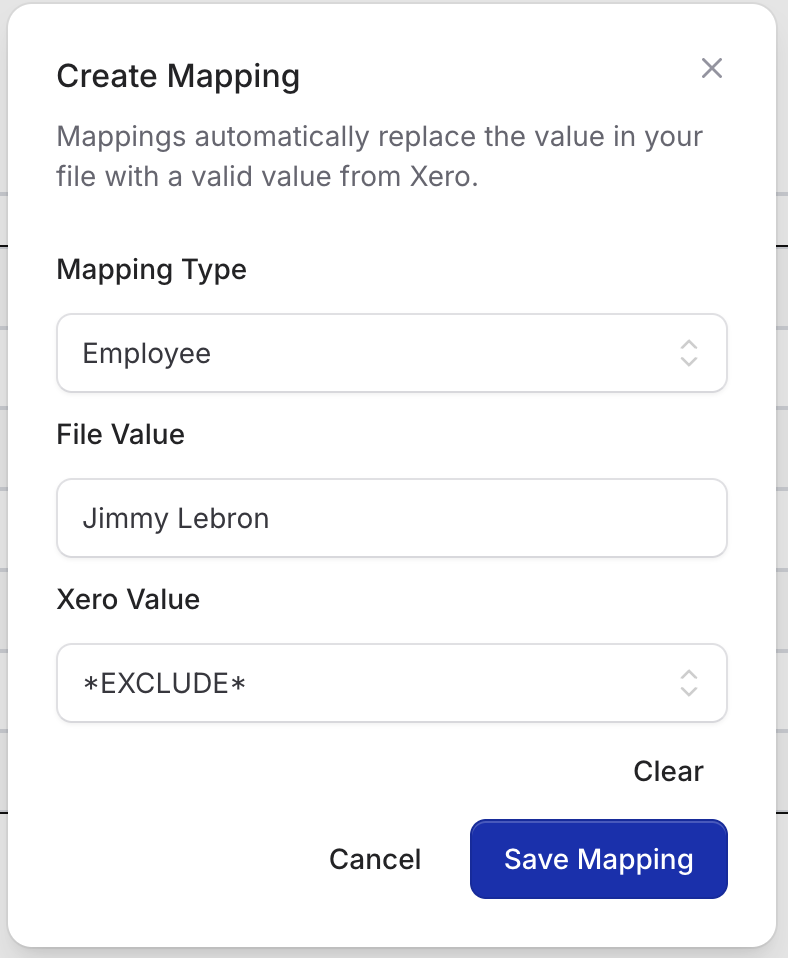
Exclude mapping by employee name
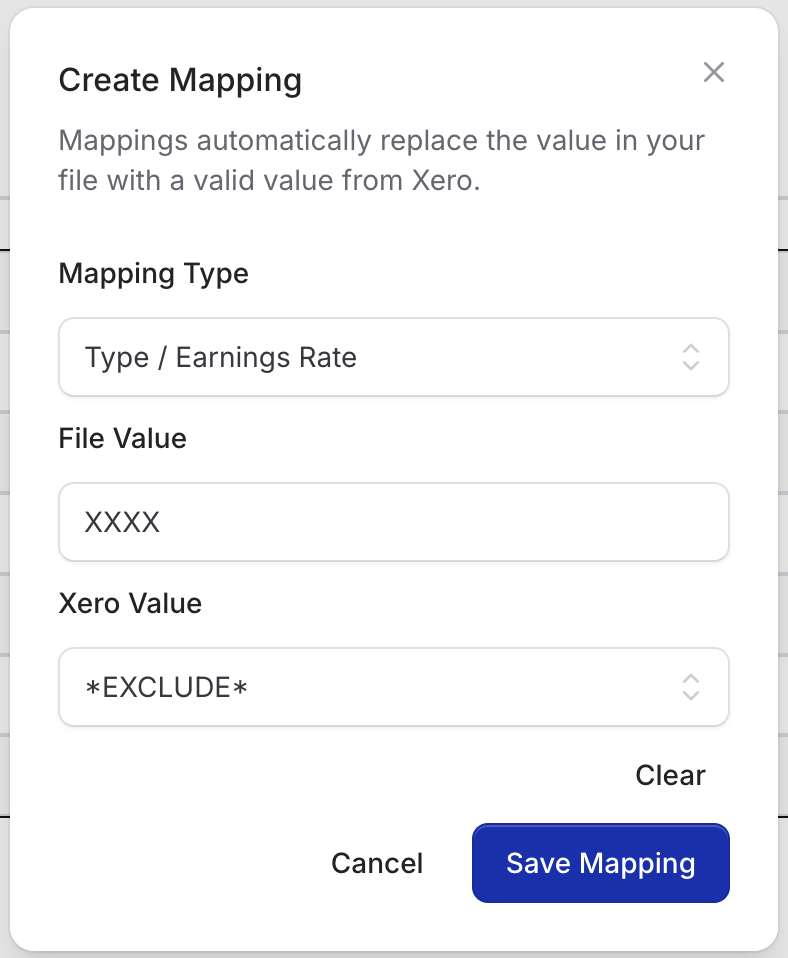
Exclude mapping by tracking code
Viewing Excluded Lines
When importing a file that matches an exclude mapping, a message is displayed indicating the number of excluded lines. Hovering over the number will also show a breakdown of which types have been excluded.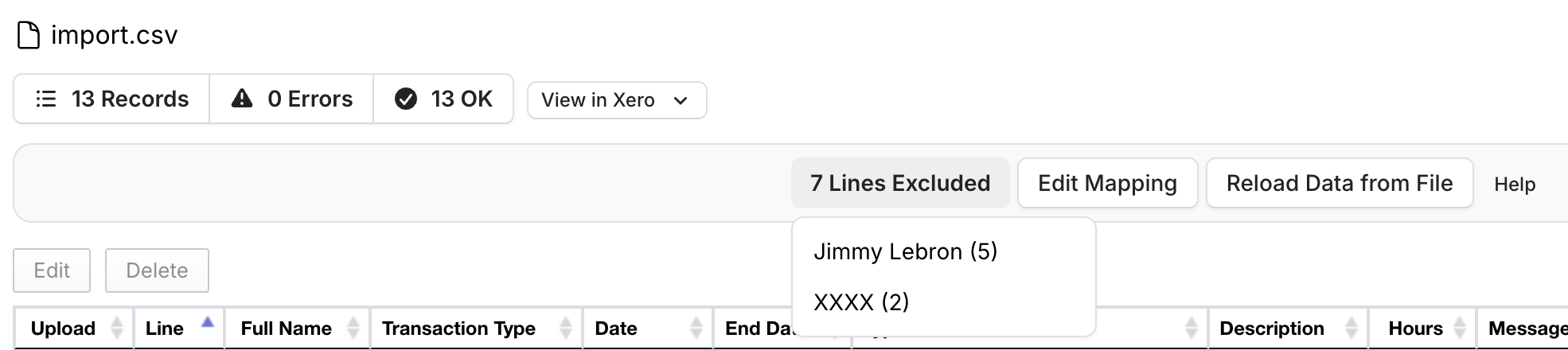
Excluded lines breakdown on hover