

Your connection has been refused by Xero?
If you see a message such as Failed to connect, the usual fix is to add the Xero organisation again to refresh the connection. If Xero has rejected your connection, it is usually because:- Xero is having an internal issue that is causing requests to fail
- The Xero user originally used to connect to UpSheets has been removed from your organisation (for example, when an employee leaves)
- The Xero user originally used to connect to UpSheets no longer has payroll access
Organisation not found
When Xero shows Organisation not found while you connect, you are usually signed into the wrong Xero account, your user has no access to that organisation, or a Xero demo organisation has expired (Xero deletes demos after 30 days). Select Organisations from the menu, click Add Organisation, sign into the Xero account that has access, then select the organisation. See Connecting to Xero for the full steps.How do I resolve this?
Add your organisation again
If you keep seeing the error, add the Xero organisation again to refresh the connection. This is more likely to fix the issue than general browser or internet troubleshooting.If you are using a demo organisation
If you are using a Xero demo org, it may have expired (Xero deletes them after 30 days). Check that your organisation still exists AND that the payroll setup is complete. You must go to the Payroll > Overview tab in Xero before it will work with any external app.Recreate the connection
Use the steps below to recreate the Xero connection in UpSheets.1
Open Organisations
Click the menu at the top right and select Organisations.
2
Add organisation
Click Add Organisation.
3
Confirm in Xero
You will be redirected to Xero to confirm the connection. Click Allow Access and you will be returned to UpSheets with the connection restored.
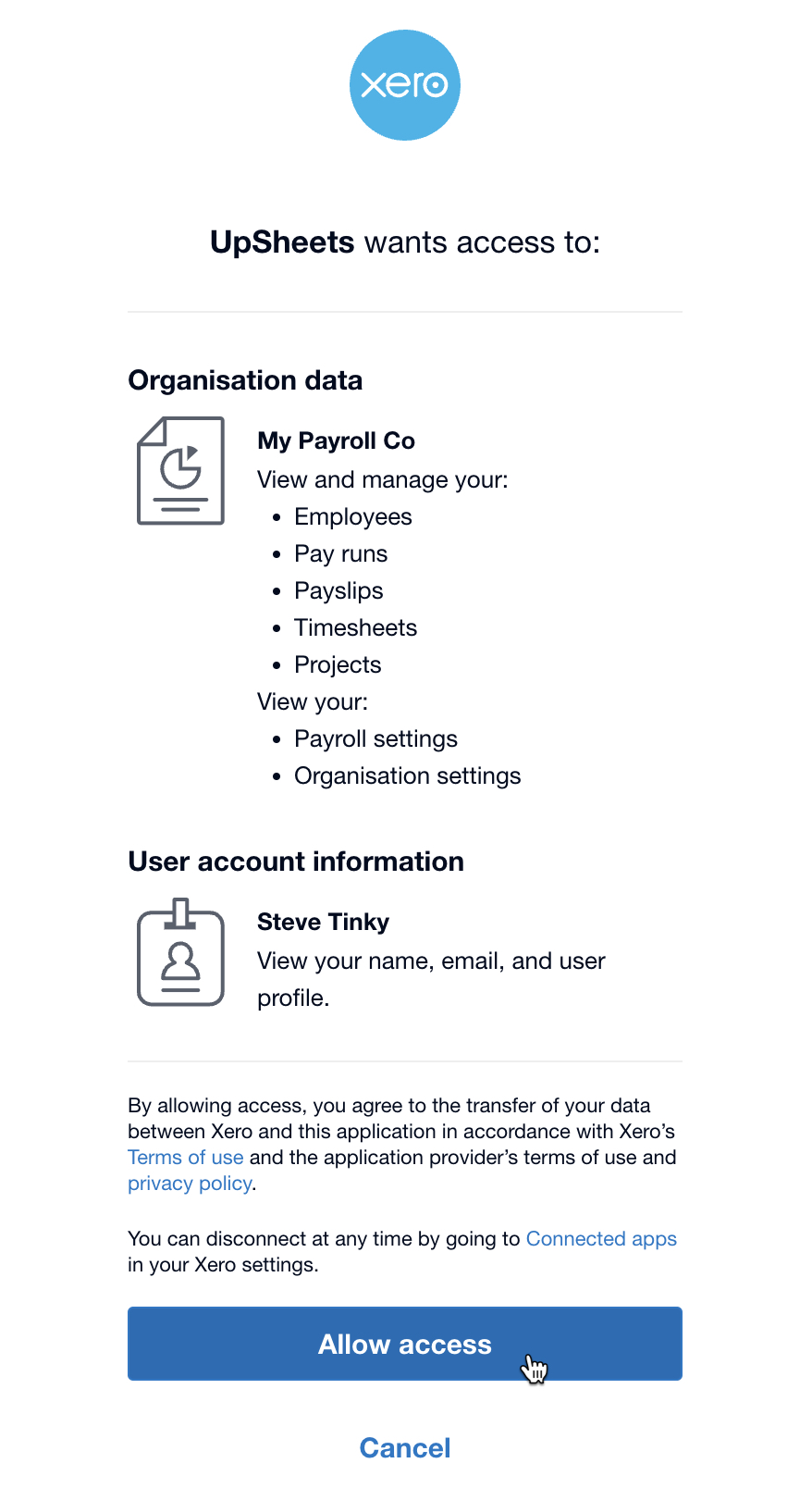
Allow access in Xero to restore connection
Required Xero access
The Xero user you use to connect UpSheets and Xero must have:- Payroll access
- Access to your organisation settings
- Employees
- Pay Runs
- Payslips
- Timesheets
- Projects (if using)
- Payroll Settings
- Organisation Settings