

Import data from Square
UpSheets can import data directly from Square into Xero Payroll.UpSheets does not import or create employees from Square. Each person in the Square time data must already exist in Xero Payroll. During validation, UpSheets matches the Square team member name (given and family name) to one Xero employee by full name. If the name does not match exactly one employee, use employee-specific mapping or see Multiple Active Employees.
Enable the Square integration
Before importing your Square data and uploading it to Xero, enable the Square integration.Importing
Once the integration is enabled, the Import screen shows a Square data source. When you select it, your Location and From / To dates are shown.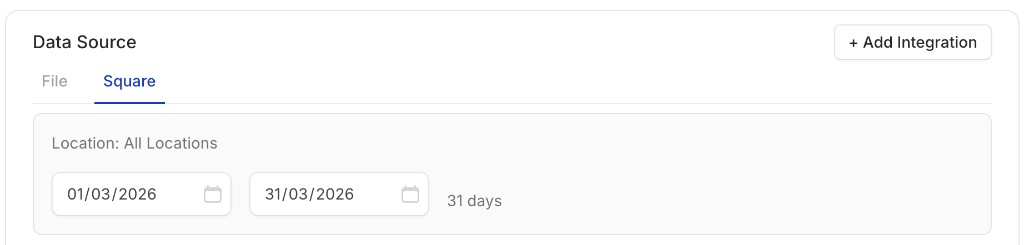
Square date selection
1
Select date range
Select the From and To dates from which you wish to import data. All time data in Square will be imported for this range (including all data on the From and To dates).
2
Select transaction types
Select the transaction types and any other import options (or accept the defaults). Click Import Data to proceed.
You can import the data as Timesheets, Leave or Payslips. If you use start/end times in Square, these can be used with Smart Formulas.
3
Map columns
Imported columns follow the Square definition – select the columns that map to name, type, hours, date, description, and so on. See Validate options for field details. Click Validate to continue.
4
Validate
UpSheets validates your data.
5
Upload
Click Upload to send your data to Xero Payroll.
Breaks from Square
Square timecards can include paid and unpaid breaks. How UpSheets handles them depends on your import options.Default approach (recommended)
For most teams (including cafes using Square meal breaks), you can ignore break lines in Xero:- Set Earnings Rate to Use default Earnings Rate set for each Employee (or another hours-based option that does not require a type column).
- Leave Enable Start/End Times unticked.
Break lines in Xero or Smart Formulas
Turn on Enable Start/End Times, or choose Use Smart Formulas (start/end times are required for Smart Formulas), and UpSheets adds separate rows with type Unpaid Break or Paid Break for each Square break, as well as regular shift rows with clock-in and clock-out times.- Break lines need a matching pay item in Xero if you want them uploaded.
- Smart Formulas are for overtime and complex shift rules, not for breaks alone. If you use them, enter Unpaid Break (and any paid break labels you use) in Break Types on the Smart Formula settings screen. See Breaks.