

Before You Begin
Smart Formulas are not a substitute for payroll or legal advice, nor are they intended to relieve you of your obligation to comply with the Legal Requirements applicable to your business.
It is each customer’s sole responsibility to pay its employees correctly and in compliance with all Legal Requirements. By using this functionality you are agreeing to these terms and conditions.
- Select Smart Formulas > Configure.
- Click Create Smart Formula.
- Choose Copy from Award Library.
- Find the formula and click Copy, or open it by clicking the name or View, then click Copy.
- Review the copied draft for your organisation.
- Edit the copied rule and test it in the simulator until you are satisfied with the behaviour.
- Publish the copied formula.
- Assign the published version from Smart Formulas > Assign.
Assign the Published Copy
After publishing the copied formula, assign it from Smart Formulas > Assign. Select the employee rows, click Assign, choose the copied formula and version, enter the base rate if needed, then click Assign. Some awards have automated allowances. You can enable or disable them when assigning Smart Formulas.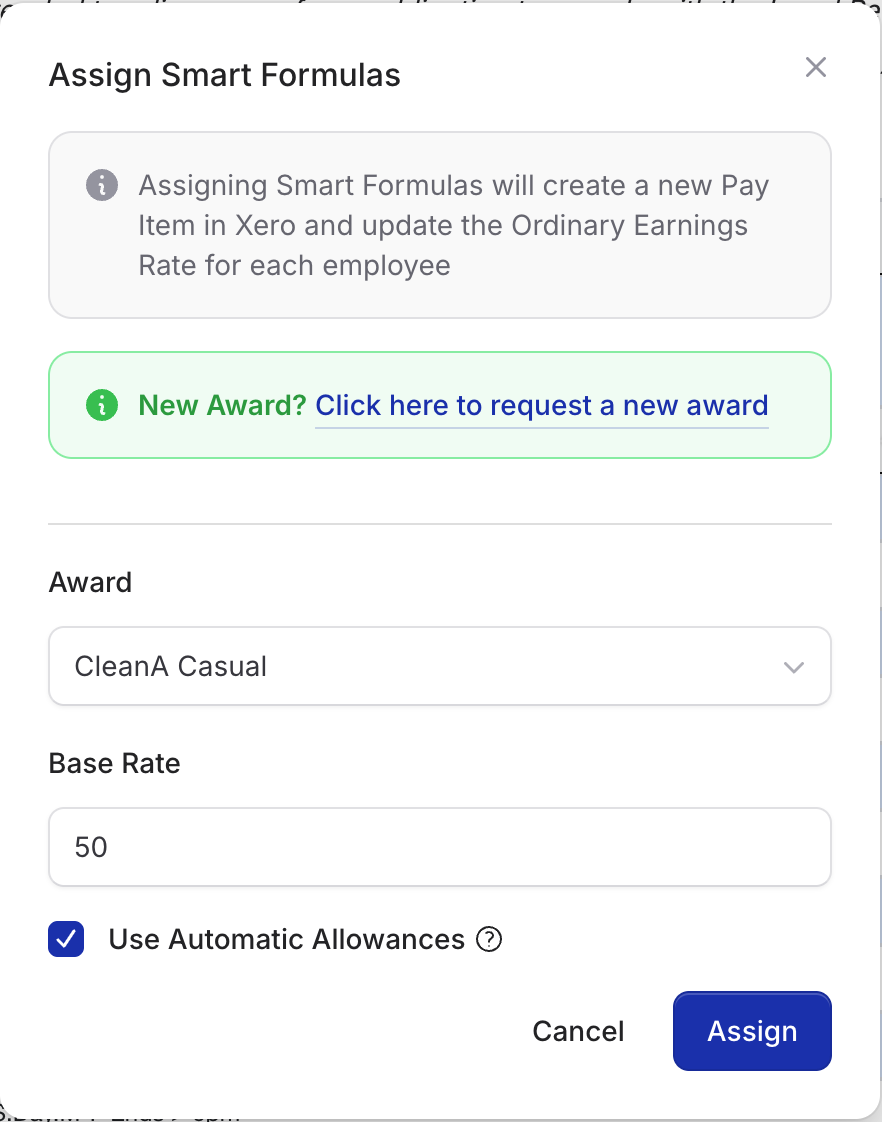
Assign UpSheets Smart Formula
A new pay item will be created for the award in Xero and will also be added to the pay template for each employee and set as the ordinary earnings rate.
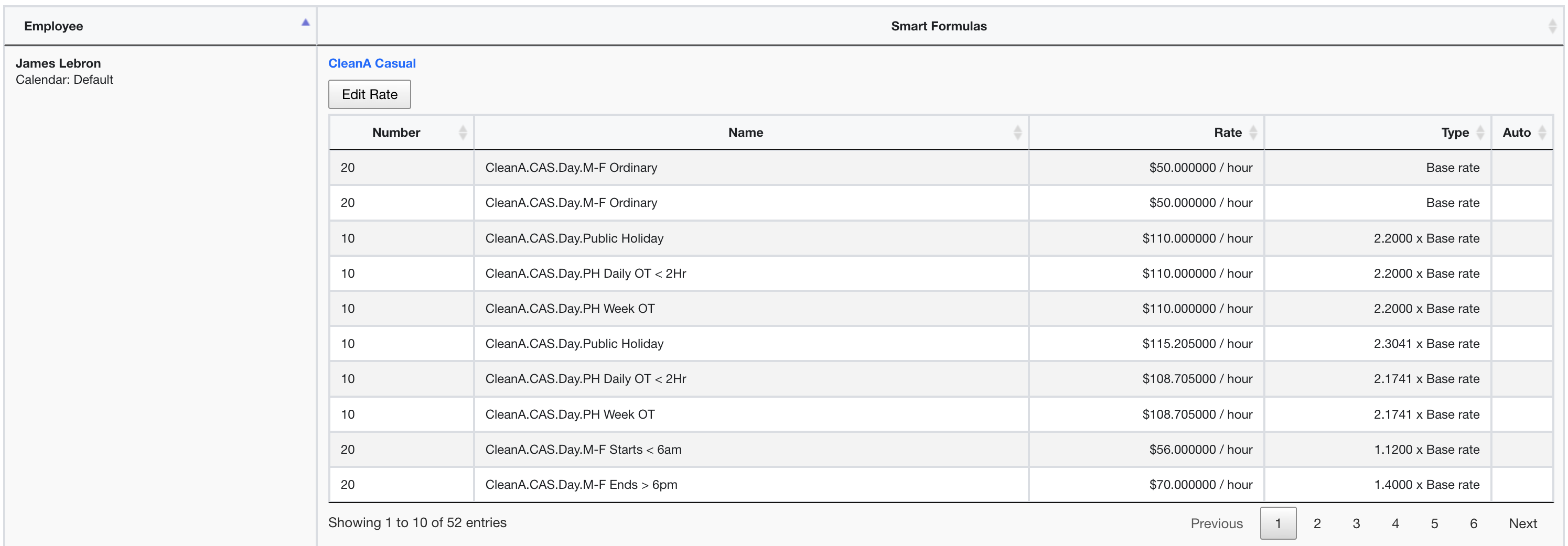
Assigned Smart Formula
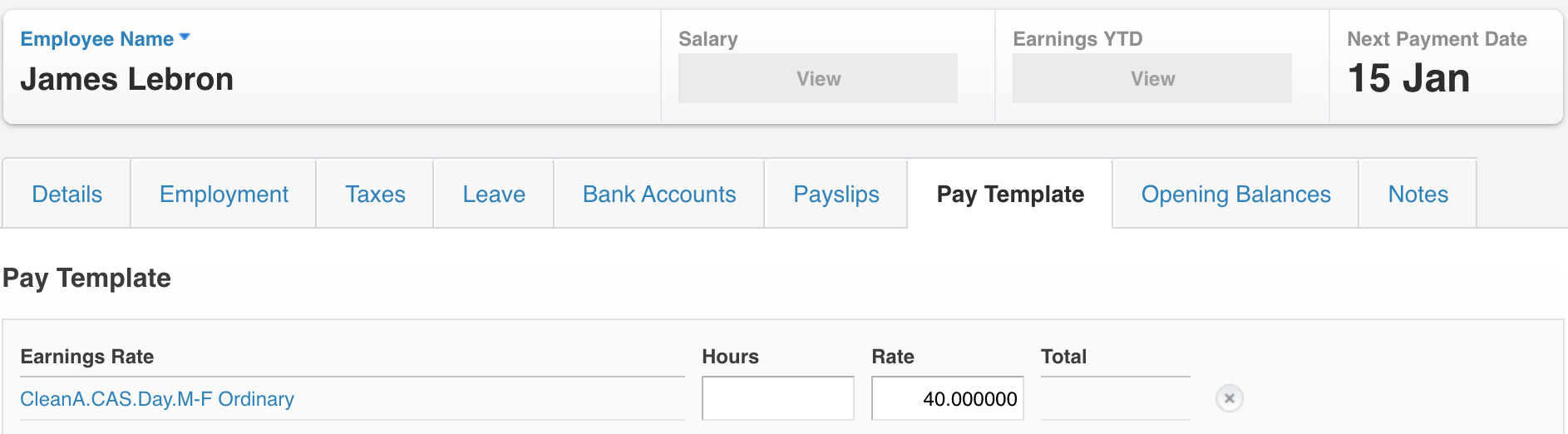
Pay template with Smart Formula in Xero

Ordinary earnings rate in pay template
Updating Rates
Base rates and allowances may optionally be updated for each employee individually by selecting a row and clicking Edit Rate. The pay template for the employee will then be updated with the updated rate.Rates that are set as a multiple of the base rate may not be updated as these are calculated automatically.
Update a Copied Award from the Library
When UpSheets publishes a newer Award Library version for a formula you copied, Smart Formulas > Configure shows a Library update badge.- Choose View updates to see a summary of what changed (effective date, classification rates, and rules added, removed, or changed). Open View beside classification rate changes to see each classification and the old → new rate.
- Choose Update from Library when you are ready. UpSheets creates or refreshes a draft with the latest library rules and keeps your short name.
- Review, simulate, and publish.
- Reassign employees to the new version from Assign. Choose classifications or base rates when minima change.
Sat x1.25). A changed multiple gets a new pay item name in Xero. Do not strip the xN suffix to reuse an older pay item name — UpSheets blocks that when non-updatable Xero settings would conflict.
Public Holidays
If you have formulas that need to use public holidays, please follow these instructions.Importing Timesheets
You are now ready to import your timesheets from a CSV file using the normal process from Import Files. If you need a sample file with your own data to test, select Download Sample File from Import Files and select only:- Timesheets
- Start/End Times
- Tracking codes (if you use them)
Removing Smart Formulas
To remove a smart formula from the employee(s), select the employees in the table and click Clear.UpSheets will attempt to remove all assignments from their pay templates and reset the Ordinary Earnings rate. If there is any problem doing this, it will need to be updated manually in Xero. Any Pay Items created are not automatically removed and should also be inactivated/deleted from Xero via the Payroll Settings as required.