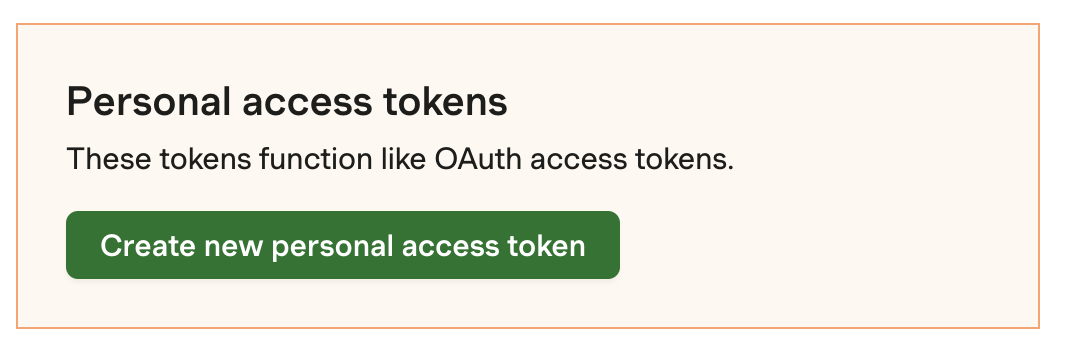
You can connect UpSheets directly to Harvest to import your data and upload it to Xero. This streamlines the process and removes the need to export and import CSV files.
Harvest data can be accessed by creating a Personal Access Token. After creating it, you will be provided with a random token and a list of your account IDs.To enable this feature, complete the steps below.
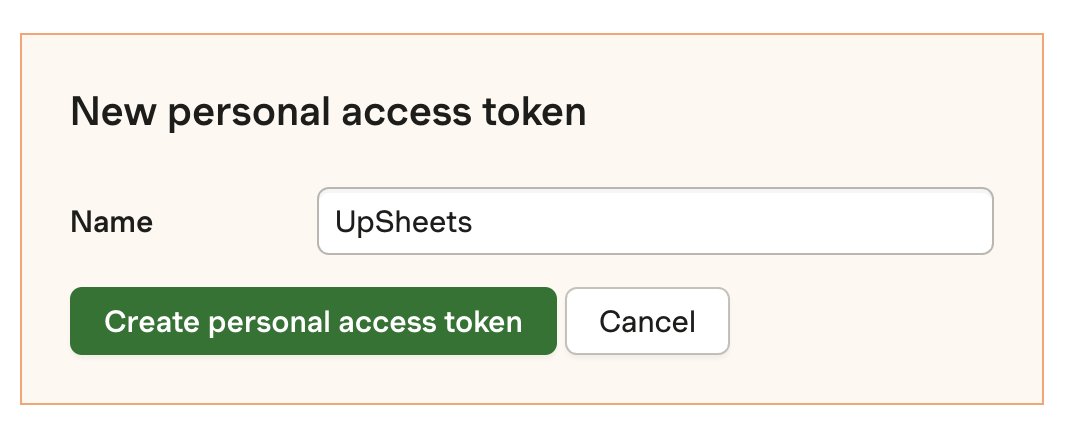
Name the token and click Create personal access token.
Naming the Harvest token
3
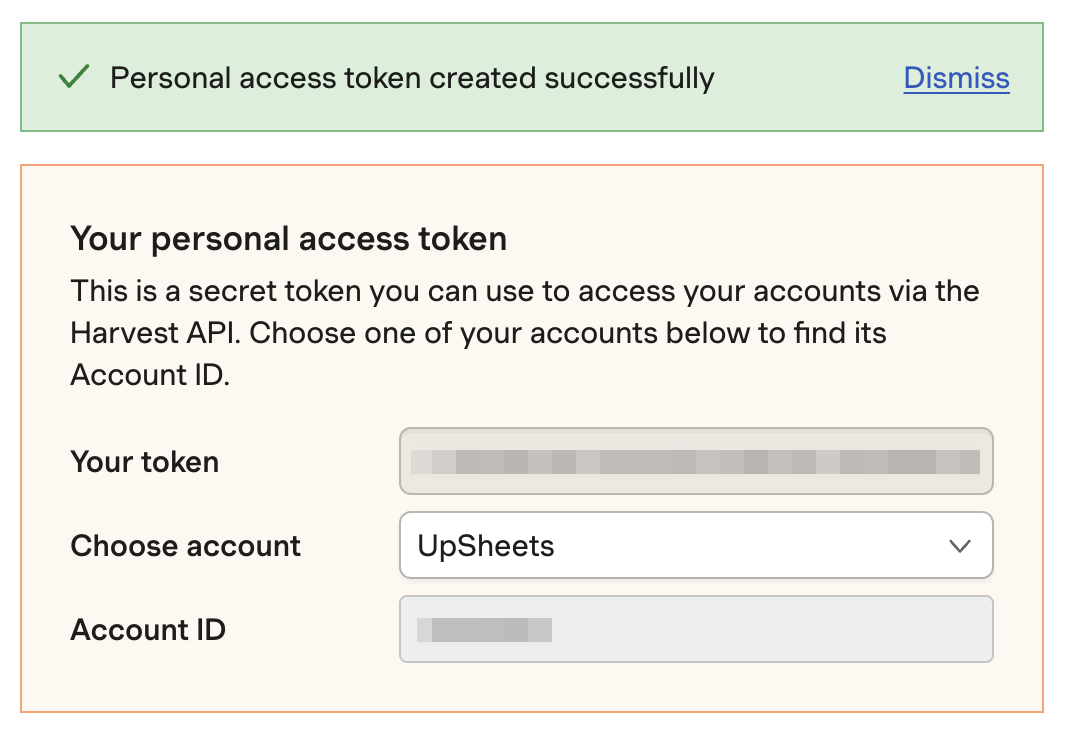
Copy token and account ID
The token will be displayed. Take note of both the Token AND Account ID (these are blurred for security reasons below).
Harvest token and account ID
Keep your Token and Account ID secret just as you would a password.
4
Enter in UpSheets
Select Integrations from the menu in UpSheets, open the Harvest tab, enter the Token and Account ID, review Enabled (on by default for a new connection), then click Save. UpSheets validates new or changed credentials before saving. If validation fails, your previous connection stays in place and the form keeps what you typed.The API key is masked after a successful save. Once connected, the Account name is displayed below. Nothing is written until you click Save.
For a new connection, Enabled starts on; you can turn it off before saving. An existing connection that is disabled stays disabled until you turn Enabled on and click Save. Turning Enabled off and clicking Save keeps your saved connection; Disconnect removes saved credentials and connection settings, and you must connect again. Previous imports and uploaded data remain. Once connected, the Account name is displayed below.
{"docsConfig":{"theme":"mint","$schema":"https://mintlify.com/docs.json","name":"UpSheets","description":"Documentation for UpSheets - import timesheets, leave, and payslips to Xero from CSV and Excel files.","colors":{"primary":"#0C58B0","light":"#3C86E0","dark":"#083E7A"},"logo":{"light":"https://res.cloudinary.com/dhuegnns4/image/upload/docs/logo.png","dark":"https://res.cloudinary.com/dhuegnns4/image/upload/docs/logo-dark.svg","href":"https://upsheets.com"},"favicon":"https://mintcdn.com/upsheets/Lce07jOaLLT5sKgf/favicon.svg?fit=max\u0026auto=format\u0026n=Lce07jOaLLT5sKgf\u0026q=85\u0026s=b4304a94d2e98fd112de07b0b6e3ccdc","navbar":{"links":[],"primary":{"type":"button","label":"Get Started","href":"https://upsheets.com"}},"footer":{"links":[{"header":"Resources","items":[{"label":"Award Library","href":"/smart-formulas/award-library/overview"},{"label":"Supported Awards","href":"/smart-formulas/award-library/awards/overview"},{"label":"Smart Formulas","href":"/smart-formulas/overview"}]}]},"seo":{"metatags":{"canonical":"https://upsheets.com/docs"},"indexing":"all"},"styling":{"latex":true},"navigation":{"pages":[]}},"deployment":{"deploymentMetadataValue":{"subdomain":"upsheets","hasAudioNarration":false,"actualSubdomain":"upsheets","customDomains":["upsheets.com"],"gitSource":{"type":"github","owner":"nzbenny","repo":"upsheets","deployBranch":"master","contentDirectory":"docs","isPrivate":true,"mountPath":"","label":""},"chroma":{"liveDeploymentHistoryId":"6aec34e6ca078695d8298131","collectionId":"93b31084-d79a-4589-87c0-1fc6be2747c3","schemaVersion":"v3","latestBuiltDeploymentHistoryId":"6aec34e6ca078695d8298131"},"entitlements":{},"buildId":"6aec34e6ca078695d8298131","clientVersion":"0.0.4076","searchFilterCounts":[{"language":"default","tag":"Smart Formulas","count":69},{"language":"default","tag":"Award Library","count":29},{"language":"default","tag":"Supported Awards","count":29},{"language":"default","tag":"Integrations","count":22},{"language":"default","tag":"Troubleshooting","count":22},{"language":"default","tag":"Direct integrations","count":19},{"language":"default","tag":"Examples","count":19},{"language":"default","tag":"File Formats","count":14},{"language":"default","tag":"Account","count":11},{"language":"default","tag":"Settings","count":10}]},"assistantConfig":{"enableAskAiButton":false,"enableStarterQuestions":false,"enableContextualStarterQuestions":false,"enableAskAiSearchBar":true},"basePath":"/docs","hasChatPermissions":false,"hasWebMcpPermissions":false,"toggles":[],"googleFontsInlined":false},"customCss":[],"page":{"pagePath":"integrations/harvest/connect","slug":"/integrations/harvest/connect","pageMetadata":{"title":"Connect Harvest","sidebarTitle":"Connect","description":"Link your Harvest account to UpSheets using a personal access token so you can import data and upload to Xero without CSV files.","keywords":["payroll","projects","integrations","harvest","import"],"malcolm_article_id":"dMCOC2zbnd","href":"/integrations/harvest/connect"},"description":{"compiledSource":"\"use strict\";\nconst {jsx: _jsx} = arguments[0];\nconst {useMDXComponents: _provideComponents} = arguments[0];\nfunction _createMdxContent(props) {\n const _components = {\n p: \"p\",\n ..._provideComponents(),\n ...props.components\n };\n return _jsx(_components.p, {\n children: \"Link your Harvest account to UpSheets using a personal access token so you can import data and upload to Xero without CSV files.\"\n });\n}\nfunction MDXContent(props = {}) {\n const {wrapper: MDXLayout} = {\n ..._provideComponents(),\n ...props.components\n };\n return MDXLayout ? _jsx(MDXLayout, {\n ...props,\n children: _jsx(_createMdxContent, {\n ...props\n })\n }) : _createMdxContent(props);\n}\nreturn {\n default: MDXContent\n};\n","frontmatter":{},"scope":{}},"pageType":"default","mdx":{"mdxSource":{"compiledSource":"\"use strict\";const{Fragment:_Fragment,jsx:_jsx,jsxs:_jsxs}=arguments[0];const{useMDXComponents:_provideComponents}=arguments[0];function _createMdxContent(props){const _components={a:`a`,p:`p`,strong:`strong`,..._provideComponents(),...props.components},{Frame,Heading,Note,OptimizedImage,Step,Steps,Warning}=_components;if(!Frame)_missingMdxReference(`Frame`,true);if(!Heading)_missingMdxReference(`Heading`,true);if(!Note)_missingMdxReference(`Note`,true);if(!OptimizedImage)_missingMdxReference(`OptimizedImage`,true);if(!Step)_missingMdxReference(`Step`,true);if(!Steps)_missingMdxReference(`Steps`,true);if(!Warning)_missingMdxReference(`Warning`,true);return _jsxs(_Fragment,{children:[_jsx(Heading,{level:`2`,id:`connect-harvest-to-upsheets`,children:`Connect Harvest to UpSheets`}),`\n`,_jsx(_components.p,{children:`You can connect UpSheets directly to Harvest to import your data and upload it to Xero. This streamlines the process and removes the need to export and import CSV files.`}),`\n`,_jsx(Heading,{level:`2`,id:`enabling-the-harvest-integration`,children:`Enabling the Harvest integration`}),`\n`,_jsx(_components.p,{children:`Harvest data can be accessed by creating a Personal Access Token. After creating it, you will be provided with a random token and a list of your account IDs.`}),`\n`,_jsx(_components.p,{children:`To enable this feature, complete the steps below.`}),`\n`,_jsxs(Steps,{children:[_jsxs(Step,{title:`Register and open Developers`,children:[_jsxs(_components.p,{children:[_jsx(_components.a,{href:`http://try.hrv.st/5-047073`,children:`Register for Harvest`}),` if you have not already done so. Select `,_jsx(_components.strong,{children:`Create new personal access token`}),` from the `,_jsx(_components.a,{href:`https://id.getharvest.com/developers`,children:`Developers section of Harvest`}),`.`]}),_jsx(Frame,{caption:`Harvest token section in Developers`,children:_jsx(OptimizedImage,{src:`https://res.cloudinary.com/dhuegnns4/image/upload/docs/harvest_token_section.png`,alt:`harvest_token_section`,width:`80%`})})]}),_jsxs(Step,{title:`Create the token`,children:[_jsxs(_components.p,{children:[`Name the token and click `,_jsx(_components.strong,{children:`Create personal access token`}),`.`]}),_jsx(Frame,{caption:`Naming the Harvest token`,children:_jsx(OptimizedImage,{src:`https://res.cloudinary.com/dhuegnns4/image/upload/docs/harvest_token_name.png`,alt:`harvest_token_name`,width:`80%`})})]}),_jsxs(Step,{title:`Copy token and account ID`,children:[_jsxs(_components.p,{children:[`The token will be displayed. Take note of both the `,_jsx(_components.strong,{children:`Token`}),` AND `,_jsx(_components.strong,{children:`Account ID`}),` (these are blurred for security reasons below).`]}),_jsx(Frame,{caption:`Harvest token and account ID`,children:_jsx(OptimizedImage,{src:`https://res.cloudinary.com/dhuegnns4/image/upload/docs/harvest_token_created.png`,alt:`harvest_token_created`,width:`80%`})}),_jsx(Warning,{children:`Keep your Token and Account ID secret just as you would a password.`})]}),_jsxs(Step,{title:`Enter in UpSheets`,children:[_jsxs(_components.p,{children:[`Select `,_jsx(_components.strong,{children:`Integrations`}),` from the menu in UpSheets, open the `,_jsx(_components.strong,{children:`Harvest`}),` tab, enter the `,_jsx(_components.strong,{children:`Token`}),` and `,_jsx(_components.strong,{children:`Account ID`}),`, review `,_jsx(_components.strong,{children:`Enabled`}),` (on by default for a new connection), then click `,_jsx(_components.strong,{children:`Save`}),`. UpSheets validates new or changed credentials before saving. If validation fails, your previous connection stays in place and the form keeps what you typed.`]}),_jsxs(_components.p,{children:[`The API key is masked after a successful save. Once connected, the Account name is displayed below. Nothing is written until you click `,_jsx(_components.strong,{children:`Save`}),`.`]}),_jsxs(Note,{children:[`For a new connection, `,_jsx(_components.strong,{children:`Enabled`}),` starts on; you can turn it off before saving. An existing connection that is disabled stays disabled until you turn `,_jsx(_components.strong,{children:`Enabled`}),` on and click `,_jsx(_components.strong,{children:`Save`}),`. Turning `,_jsx(_components.strong,{children:`Enabled`}),` off and clicking `,_jsx(_components.strong,{children:`Save`}),` keeps your saved connection; `,_jsx(_components.strong,{children:`Disconnect`}),` removes saved credentials and connection settings, and you must connect again. Previous imports and uploaded data remain. Once connected, the Account name is displayed below.`]})]})]})]})}function MDXContent(props={}){const{wrapper:MDXLayout}={..._provideComponents(),...props.components};return MDXLayout?_jsx(MDXLayout,{...props,children:_jsx(_createMdxContent,{...props})}):_createMdxContent(props)}return{default:MDXContent};function _missingMdxReference(id,component){throw new Error(`Expected `+(component?`component`:`object`)+\" `\"+id+\"` to be defined: you likely forgot to import, pass, or provide it.\")}","frontmatter":{},"scope":{"config":{},"pageMetadata":{"title":"Connect Harvest","sidebarTitle":"Connect","description":"Link your Harvest account to UpSheets using a personal access token so you can import data and upload to Xero without CSV files.","keywords":["payroll","projects","integrations","harvest","import"],"malcolm_article_id":"dMCOC2zbnd","href":"/integrations/harvest/connect"}}},"mdxSourceWithNoJs":null},"mdxExtracts":{"tableOfContents":[{"title":"Connect Harvest to UpSheets","slug":"connect-harvest-to-upsheets","depth":2,"children":[]},{"title":"Enabling the Harvest integration","slug":"enabling-the-harvest-integration","depth":2,"children":[]}],"codeExamples":{}},"jsLinks":[],"subdomain":"upsheets","siteName":"UpSheets","title":"Connect Harvest - UpSheets","navMaps":{"firstHrefInVersion":{},"firstHrefInLanguage":{}},"lastModified":"2026-10-22T13:15:06.090Z","originalFileLocation":"integrations/harvest/connect.mdx"},"headHtml":"\u003cscript data-mint-head>(function(){var d=document.documentElement,p=null;if(!p){try{p=localStorage.getItem(\"isDarkMode\")}catch(e){}if(p==='true')p='dark';else if(p==='false')p='light';if(p!=='light'\u0026\u0026p!=='dark'\u0026\u0026p!=='system')p=\"system\"}var r=p==='system'?(matchMedia(\"(prefers-color-scheme: dark)\").matches?'dark':'light'):p;d.classList.remove(r==='dark'?'light':'dark');d.classList.add(r);d.setAttribute(\"data-theme-preference\",p)})();\u003c/script>\u003cmeta data-mint-head name=\"description\" content=\"Link your Harvest account to UpSheets using a personal access token so you can import data and upload to Xero without CSV files.\">\u003cmeta data-mint-head name=\"application-name\" content=\"UpSheets\">\u003cmeta data-mint-head name=\"generator\" content=\"Mintlify\">\u003clink data-mint-head rel=\"icon\" type=\"image/png\" sizes=\"192x192\" href=\"/docs/mintlify-assets/_mintlify/favicons/upsheets/1x5s_05z0K10L3nB/_generated/favicon/android-chrome-192x192.png\" media=\"(prefers-color-scheme: light)\">\u003clink data-mint-head rel=\"apple-touch-icon\" type=\"image/png\" sizes=\"180x180\" href=\"/docs/mintlify-assets/_mintlify/favicons/upsheets/1x5s_05z0K10L3nB/_generated/favicon/apple-touch-icon.png\">\u003clink data-mint-head rel=\"icon\" type=\"image/png\" sizes=\"16x16\" href=\"/docs/mintlify-assets/_mintlify/favicons/upsheets/1x5s_05z0K10L3nB/_generated/favicon/favicon-16x16.png\" media=\"(prefers-color-scheme: light)\">\u003clink data-mint-head rel=\"icon\" type=\"image/png\" sizes=\"32x32\" href=\"/docs/mintlify-assets/_mintlify/favicons/upsheets/1x5s_05z0K10L3nB/_generated/favicon/favicon-32x32.png\" media=\"(prefers-color-scheme: light)\">\u003clink data-mint-head rel=\"shortcut icon\" type=\"image/x-icon\" href=\"/docs/mintlify-assets/_mintlify/favicons/upsheets/1x5s_05z0K10L3nB/_generated/favicon/favicon.ico\" media=\"(prefers-color-scheme: light)\">\u003clink data-mint-head rel=\"icon\" type=\"image/png\" sizes=\"192x192\" href=\"/docs/mintlify-assets/_mintlify/favicons/upsheets/1x5s_05z0K10L3nB/_generated/favicon-dark/android-chrome-192x192.png\" media=\"(prefers-color-scheme: dark)\">\u003clink data-mint-head rel=\"icon\" type=\"image/png\" sizes=\"16x16\" href=\"/docs/mintlify-assets/_mintlify/favicons/upsheets/1x5s_05z0K10L3nB/_generated/favicon-dark/favicon-16x16.png\" media=\"(prefers-color-scheme: dark)\">\u003clink data-mint-head rel=\"icon\" type=\"image/png\" sizes=\"32x32\" href=\"/docs/mintlify-assets/_mintlify/favicons/upsheets/1x5s_05z0K10L3nB/_generated/favicon-dark/favicon-32x32.png\" media=\"(prefers-color-scheme: dark)\">\u003clink data-mint-head rel=\"shortcut icon\" type=\"image/x-icon\" href=\"/docs/mintlify-assets/_mintlify/favicons/upsheets/1x5s_05z0K10L3nB/_generated/favicon-dark/favicon.ico\" media=\"(prefers-color-scheme: dark)\">\u003cmeta data-mint-head property=\"og:title\" content=\"Connect Harvest - UpSheets\">\u003cmeta data-mint-head property=\"og:description\" content=\"Link your Harvest account to UpSheets using a personal access token so you can import data and upload to Xero without CSV files.\">\u003cmeta data-mint-head property=\"og:site_name\" content=\"UpSheets\">\u003cmeta data-mint-head property=\"og:url\" content=\"https://upsheets.com/docs/integrations/harvest/connect\">\u003cmeta data-mint-head property=\"og:type\" content=\"website\">\u003cmeta data-mint-head property=\"og:image\" content=\"https://upsheets.mintlify.site/docs/_mintlify/api/og/v2?division=Harvest\u0026amp;title=Connect+Harvest\u0026amp;description=Link+your+Harvest+account+to+UpSheets+using+a+personal+access+token+so+you+can+import+data+and+upload+to+Xero+without+CSV+files.\u0026amp;theme=ebebc7c216b7f4d8f035cbc0\u0026amp;signature=22b6452b5fae5f7d2d10b896a0072cad93be4bc6bdaec2aaecc8a3c57a49df9f\">\u003cmeta data-mint-head property=\"og:image:width\" content=\"1200\">\u003cmeta data-mint-head property=\"og:image:height\" content=\"630\">\u003cmeta data-mint-head name=\"twitter:card\" content=\"summary_large_image\">\u003cmeta data-mint-head name=\"twitter:title\" content=\"Connect Harvest - UpSheets\">\u003cmeta data-mint-head name=\"twitter:description\" content=\"Link your Harvest account to UpSheets using a personal access token so you can import data and upload to Xero without CSV files.\">\u003cmeta data-mint-head name=\"twitter:image\" content=\"https://upsheets.mintlify.site/docs/_mintlify/api/og/v2?division=Harvest\u0026amp;title=Connect+Harvest\u0026amp;description=Link+your+Harvest+account+to+UpSheets+using+a+personal+access+token+so+you+can+import+data+and+upload+to+Xero+without+CSV+files.\u0026amp;theme=ebebc7c216b7f4d8f035cbc0\u0026amp;signature=22b6452b5fae5f7d2d10b896a0072cad93be4bc6bdaec2aaecc8a3c57a49df9f\">\u003cmeta data-mint-head name=\"twitter:image:width\" content=\"1200\">\u003cmeta data-mint-head name=\"twitter:image:height\" content=\"630\">\u003cmeta data-mint-head name=\"msapplication-config\" content=\"/docs/mintlify-assets/_mintlify/favicons/upsheets/1x5s_05z0K10L3nB/_generated/favicon/browserconfig.xml\">\u003cmeta data-mint-head name=\"apple-mobile-web-app-title\" content=\"UpSheets\">\u003cmeta data-mint-head name=\"msapplication-TileColor\" content=\"#0C58B0\">\u003clink data-mint-head rel=\"canonical\" href=\"https://upsheets.com/docs/integrations/harvest/connect\">\u003clink data-mint-head rel=\"alternate\" type=\"application/xml\" href=\"/docs/sitemap.xml\">\u003clink data-mint-head rel=\"alternate\" type=\"text/markdown\" href=\"/docs/integrations/harvest/connect.md\">\u003cscript data-mint-head type=\"application/ld+json\">{\"@context\":\"https://schema.org\",\"@graph\":[{\"@type\":\"Organization\",\"@id\":\"https://upsheets.com/#organization\",\"name\":\"UpSheets\",\"url\":\"https://upsheets.com\",\"logo\":{\"@type\":\"ImageObject\",\"url\":\"https://res.cloudinary.com/dhuegnns4/image/upload/docs/logo.png\"}},{\"@type\":\"WebSite\",\"@id\":\"https://upsheets.com/docs#website\",\"name\":\"UpSheets\",\"url\":\"https://upsheets.com/docs\",\"publisher\":{\"@id\":\"https://upsheets.com/#organization\"}},{\"@type\":\"WebPage\",\"@id\":\"https://upsheets.com/docs/integrations/harvest/connect#webpage\",\"url\":\"https://upsheets.com/docs/integrations/harvest/connect\",\"name\":\"Connect Harvest\",\"description\":\"Link your Harvest account to UpSheets using a personal access token so you can import data and upload to Xero without CSV files.\",\"dateModified\":\"2026-10-22T13:15:06.090Z\",\"isPartOf\":{\"@id\":\"https://upsheets.com/docs#website\"},\"breadcrumb\":{\"@id\":\"https://upsheets.com/docs/integrations/harvest/connect#breadcrumb\"}},{\"@type\":\"BreadcrumbList\",\"@id\":\"https://upsheets.com/docs/integrations/harvest/connect#breadcrumb\",\"itemListElement\":[{\"@type\":\"ListItem\",\"position\":1,\"name\":\"Integrations\",\"item\":\"https://upsheets.com/docs/integrations/overview\"},{\"@type\":\"ListItem\",\"position\":2,\"name\":\"Direct integrations\",\"item\":\"https://upsheets.com/docs/integrations/brighthr/overview\"},{\"@type\":\"ListItem\",\"position\":3,\"name\":\"Connect Harvest\",\"item\":\"https://upsheets.com/docs/integrations/harvest/connect\"}]},{\"@type\":[\"Article\",\"TechArticle\"],\"@id\":\"https://upsheets.com/docs/integrations/harvest/connect#article\",\"headline\":\"Connect Harvest\",\"name\":\"Connect Harvest\",\"description\":\"Link your Harvest account to UpSheets using a personal access token so you can import data and upload to Xero without CSV files.\",\"url\":\"https://upsheets.com/docs/integrations/harvest/connect\",\"mainEntityOfPage\":{\"@id\":\"https://upsheets.com/docs/integrations/harvest/connect#webpage\"},\"dateModified\":\"2026-10-22T13:15:06.090Z\",\"keywords\":\"payroll, projects, integrations, harvest, import\",\"publisher\":{\"@id\":\"https://upsheets.com/#organization\"},\"isPartOf\":{\"@id\":\"https://upsheets.com/docs#website\"}}]}\u003c/script>\u003cscript data-mint-head type=\"application/ld+json\">{\"@context\":\"https://schema.org\",\"@type\":\"WebSite\",\"name\":\"UpSheets\",\"creator\":{\"@type\":\"Organization\",\"name\":\"Mintlify\",\"url\":\"https://mintlify.com\"}}\u003c/script>","siteName":"UpSheets","nav":{"global":null,"groups":[{"group":"Getting Started","icon":"rocket","pages":[{"title":"Getting Started with UpSheets","sidebarTitle":"Introduction","href":"/getting-started/introduction"},{"title":"Quickstart","href":"/getting-started/quickstart"},{"title":"Payroll Process","href":"/getting-started/payroll-process"},{"title":"Projects Process","href":"/getting-started/projects-process"},{"title":"Transaction Types","href":"/getting-started/transaction-types"}]},{"group":"Connect","icon":"link","pages":[{"title":"Connecting to Xero","href":"/connect/connecting-to-xero"},{"title":"Manage Your Connection","href":"/connect/managing-your-connection"},{"title":"Multiple Organisations","href":"/connect/multiple-organisations"},{"title":"Xero Demo Organisation","href":"/connect/xero-demo-organisation"}]},{"group":"Importing","icon":"file-import","pages":[{"title":"Download Sample File","href":"/importing/download-sample-file"},{"title":"File Types","href":"/importing/file-types"},{"title":"Integrations Overview","sidebarTitle":"Integrations","href":"/integrations/overview"},{"title":"Import Options","href":"/importing/import-options"},{"title":"Earnings Rates \u0026 Types","href":"/importing/earnings-rates-and-types"},{"title":"One Column Per Import Field","sidebarTitle":"One Column Per Field","href":"/importing/one-column-per-field"},{"title":"Editing Imported Data","href":"/importing/editing-imported-data"},{"title":"Uploading Again","href":"/importing/uploading-again"},{"title":"Downloading and Deleting Imported Files","sidebarTitle":"Imported Files","href":"/importing/deleting-imported-files"}]},{"group":"Integrations","icon":"plug","pages":[{"title":"Integrations Overview","sidebarTitle":"Integrations","href":"/integrations/overview"},{"group":"Direct integrations","expanded":false,"pages":[{"group":"BrightHR","expanded":false,"pages":[{"title":"BrightHR Overview","sidebarTitle":"Overview","href":"/integrations/brighthr/overview"},{"title":"Import BrightHR CSV Files","sidebarTitle":"CSV Import","href":"/integrations/brighthr/csv-import"},{"title":"Connect BrightHR","sidebarTitle":"Connect","href":"/integrations/brighthr/connect"},{"title":"Import Data from BrightHR","sidebarTitle":"Import Data","href":"/integrations/brighthr/import-data"}]},{"group":"Clockify","expanded":false,"pages":[{"title":"Connect Clockify","sidebarTitle":"Connect","href":"/integrations/clockify/connect"},{"title":"Import Data from Clockify","sidebarTitle":"Import Data","href":"/integrations/clockify/import-data"}]},{"group":"Connecteam","expanded":false,"pages":[{"title":"Connect Connecteam","sidebarTitle":"Connect","href":"/integrations/connecteam/connect"},{"title":"Import Data from Connecteam","sidebarTitle":"Import Data","description":"How to import time, leave, and payslip data from Connecteam into UpSheets and upload it to Xero Payroll.","href":"/integrations/connecteam/import-data"}]},{"group":"Harvest","expanded":false,"pages":[{"title":"Connect Harvest","sidebarTitle":"Connect","href":"/integrations/harvest/connect"},{"title":"Import Data from Harvest","sidebarTitle":"Import Data","description":"How to import time, leave, and payslip data from Harvest into UpSheets and upload it to Xero Payroll.","href":"/integrations/harvest/import-data"}]},{"group":"RotaCloud","expanded":false,"pages":[{"title":"Connect RotaCloud","sidebarTitle":"Connect","href":"/integrations/rotacloud/connect"},{"title":"Import Data from RotaCloud","sidebarTitle":"Import Data","href":"/integrations/rotacloud/import-data"}]},{"group":"Square","expanded":false,"pages":[{"title":"Connect Square","sidebarTitle":"Connect","href":"/integrations/square/connect"},{"title":"Import Data from Square","sidebarTitle":"Import Data","href":"/integrations/square/import-data"}]},{"group":"Toggl Track","expanded":false,"pages":[{"title":"Connect Toggl Track","sidebarTitle":"Connect","href":"/integrations/toggl/connect"},{"title":"Import Data from Toggl Track","sidebarTitle":"Import Data","href":"/integrations/toggl/import-data"}]},{"group":"TrackingTime","expanded":false,"pages":[{"title":"Connect TrackingTime","sidebarTitle":"Connect","href":"/integrations/tracking-time/connect"},{"title":"Import Data from TrackingTime","sidebarTitle":"Import Data","href":"/integrations/tracking-time/import-data"}]},{"group":"Varicon","expanded":false,"pages":[{"title":"Connect Varicon","sidebarTitle":"Connect","href":"/integrations/varicon/connect"}]}]},{"group":"Other integrations","expanded":false,"pages":[{"title":"Subway Live IQ","href":"/integrations/subway"},{"title":"WorkflowMax","href":"/integrations/workflowmax"}]}]},{"group":"File Formats","icon":"file-lines","pages":[{"group":"Payroll (Australia)","expanded":false,"pages":[{"title":"Australia Payroll File Formats","sidebarTitle":"Overview","href":"/file-formats/payroll-australia/overview"},{"title":"Timesheets","href":"/file-formats/payroll-australia/timesheets"},{"title":"Leave","href":"/file-formats/payroll-australia/leave"},{"title":"Australia Payslip File Format","sidebarTitle":"Payslips","href":"/file-formats/payroll-australia/payslips"},{"title":"Australia Multi-Type Payroll File Format","sidebarTitle":"Multiple Types","href":"/file-formats/payroll-australia/multiple-types"}]},{"group":"Payroll (NZ \u0026 UK)","expanded":false,"pages":[{"title":"NZ and UK Payroll File Formats","sidebarTitle":"Overview","href":"/file-formats/payroll-nz-uk/overview"},{"title":"Timesheets","href":"/file-formats/payroll-nz-uk/timesheets"},{"title":"Leave","href":"/file-formats/payroll-nz-uk/leave"},{"title":"New Zealand Payslip File Format","sidebarTitle":"Payslips","href":"/file-formats/payroll-nz-uk/payslips"},{"title":"NZ and UK Multi-Type Payroll File Format","sidebarTitle":"Multiple Types","href":"/file-formats/payroll-nz-uk/multiple-types"}]},{"title":"Projects (Global)","href":"/file-formats/projects-global"},{"title":"Multiple Columns","href":"/file-formats/multiple-columns"},{"title":"Start \u0026 End Times","href":"/file-formats/start-and-end-times"},{"title":"Ignoring Rows and Comments","href":"/file-formats/ignoring-rows-and-comments"}]},{"group":"Mapping","icon":"sitemap","pages":[{"title":"Mapping Overview","sidebarTitle":"Overview","href":"/mapping/overview"},{"title":"Employee Specific","href":"/mapping/employee-specific"},{"title":"Exclude Lines","href":"/mapping/exclude-lines"}]},{"group":"Timesheets","icon":"clock","pages":[{"title":"Timesheets Overview","sidebarTitle":"Overview","href":"/timesheets/overview"},{"title":"Duplicates","href":"/timesheets/duplicates"},{"title":"Status","href":"/timesheets/status"},{"title":"Tracking Categories","href":"/timesheets/tracking-categories"},{"title":"Valid Earnings Rates","href":"/timesheets/valid-earnings-rates"},{"title":"Automatic Break Deduction","href":"/timesheets/automatic-breaks"}]},{"group":"Leave","icon":"calendar-days","pages":[{"title":"Leave Overview","sidebarTitle":"Overview","href":"/leave/overview"},{"title":"Duplicates","href":"/leave/duplicates"},{"title":"Default End Date \u0026 Description","href":"/leave/default-end-date-and-description"},{"title":"Calculate Leave Hours","href":"/leave/calculate-leave-hours"},{"title":"Multiple Pay Periods","href":"/leave/multiple-pay-periods"}]},{"group":"Payslips","icon":"money-bill","pages":[{"title":"Payslips Overview","sidebarTitle":"Overview","href":"/payslips/overview"},{"title":"Duplicates","href":"/payslips/duplicates"},{"title":"Defaulting Rates from Xero","href":"/payslips/defaulting-rates-from-xero"},{"title":"Overwriting Existing Payslips","href":"/payslips/overwriting-existing-payslips"},{"title":"Uploading Allowances","href":"/payslips/uploading-allowances"},{"title":"Loading Earnings as Timesheets","href":"/payslips/loading-earnings-as-timesheets"},{"title":"Unscheduled Pay Runs","href":"/payslips/unscheduled-pay-runs"},{"title":"Wrong Pay Period","href":"/payslips/wrong-pay-period"},{"title":"Auto Create Pay Runs","href":"/payslips/auto-create-pay-runs"},{"title":"Draft Timesheets Before Payslip Upload","href":"/payslips/draft-timesheets-before-upload"}]},{"group":"Smart Formulas","icon":"wand-magic-sparkles","pages":[{"title":"Smart Formulas Overview","sidebarTitle":"Overview","href":"/smart-formulas/overview"},{"group":"Setup Workflow","expanded":false,"pages":[{"title":"Configure Smart Formulas in UpSheets","sidebarTitle":"Configure","href":"/smart-formulas/configure"},{"title":"Smart Formula Rules","sidebarTitle":"Rules","href":"/smart-formulas/rules"},{"title":"Simulate Smart Formulas","sidebarTitle":"Simulate","href":"/smart-formulas/simulate"},{"title":"Publish and Version Smart Formulas","sidebarTitle":"Publish and Version","href":"/smart-formulas/publish-and-version"},{"title":"Assign Smart Formulas to Employees","sidebarTitle":"Assign","href":"/smart-formulas/assign"}]},{"group":"Examples","expanded":false,"pages":[{"group":"Rates and Overtime","expanded":false,"pages":[{"title":"Ordinary Penalties and Daily Overtime Example","sidebarTitle":"Ordinary + Daily Overtime","href":"/smart-formulas/examples/ordinary-penalties-and-daily-overtime"},{"title":"Weekly Overtime Example","sidebarTitle":"Weekly Overtime","href":"/smart-formulas/examples/weekly-overtime"},{"title":"Public Holiday Rates Example","sidebarTitle":"Public Holiday Rates","href":"/smart-formulas/examples/public-holiday-rates"}]},{"group":"Rule Modifiers","expanded":false,"pages":[{"title":"Start Period Only Example","sidebarTitle":"Start Period Only","href":"/smart-formulas/examples/start-period-only"},{"title":"End Period Only Example","sidebarTitle":"End Period Only","href":"/smart-formulas/examples/end-period-only"},{"title":"Minimum and Maximum Hours Example","sidebarTitle":"Minimum + Maximum Hours","href":"/smart-formulas/examples/minimum-and-maximum-hours"},{"title":"Minimum Shift Gap Example","sidebarTitle":"Minimum Shift Gap","href":"/smart-formulas/examples/minimum-shift-gap"},{"title":"Minimum Shift Gap After Overtime Example","sidebarTitle":"Gap After Overtime","href":"/smart-formulas/examples/minimum-shift-gap-after-overtime"}]},{"group":"Break Removal","expanded":false,"pages":[{"title":"Shift Break Removal Example","sidebarTitle":"Shift Break Removal","href":"/smart-formulas/examples/shift-break-removal"},{"title":"Day Break Removal Example","sidebarTitle":"Day Break Removal","href":"/smart-formulas/examples/day-break-removal"}]},{"group":"Allowances","expanded":false,"pages":[{"title":"Hourly Allowance Example","sidebarTitle":"Hourly Allowance","href":"/smart-formulas/examples/hourly-allowance"},{"title":"Shift Allowance Example","sidebarTitle":"Shift Allowance","href":"/smart-formulas/examples/shift-allowance"},{"title":"Day Allowance Example","sidebarTitle":"Day Allowance","href":"/smart-formulas/examples/day-allowance"},{"title":"Week Allowance Example","sidebarTitle":"Week Allowance","href":"/smart-formulas/examples/week-allowance"},{"title":"Broken Shift Allowance Example","sidebarTitle":"Broken Shift Allowance","href":"/smart-formulas/examples/broken-shift-allowance"},{"title":"Minimum Engagement Allowance Example","sidebarTitle":"Minimum Engagement","href":"/smart-formulas/examples/minimum-engagement-allowance"},{"title":"Top Up Allowance Example","sidebarTitle":"Top Up Allowance","href":"/smart-formulas/examples/top-up-allowance"},{"title":"Manual Allowance Example","sidebarTitle":"Manual Allowance","href":"/smart-formulas/examples/manual-allowance"}]},{"group":"Leave Accrual","expanded":false,"pages":[{"title":"Rostered Days Off (RDO) in UpSheets","sidebarTitle":"Rostered Days Off","href":"/smart-formulas/examples/rostered-days-off"}]}]},{"group":"Settings","expanded":false,"pages":[{"title":"Smart Formula Settings","sidebarTitle":"Overview","href":"/smart-formulas/settings/overview"},{"title":"Allow Types","href":"/smart-formulas/allow-types"},{"title":"Ignore Types","href":"/smart-formulas/ignore-types"},{"title":"Shift Types in Smart Formulas","sidebarTitle":"Shift Types","href":"/smart-formulas/shift-types"},{"title":"Breaks","href":"/smart-formulas/breaks"},{"title":"Next-Day Rates After Midnight","sidebarTitle":"Next Day Rules","href":"/smart-formulas/next-day-rates"},{"title":"Default Start Time","href":"/smart-formulas/default-start-time"},{"title":"Public Holidays","href":"/smart-formulas/public-holidays"},{"title":"Pay Item Defaults","href":"/smart-formulas/pay-item-defaults"},{"title":"Automated Allowances","href":"/smart-formulas/automated-allowances"}]},{"group":"Award Library","root":{"title":"Award Library Overview","sidebarTitle":"Overview","href":"/smart-formulas/award-library/overview"},"expanded":false,"pages":[{"group":"Supported Awards","root":{"title":"Supported Australian Modern Award Pay Rates and Xero Automation","sidebarTitle":"Supported Awards","href":"/smart-formulas/award-library/awards/overview"},"expanded":false,"pages":[{"title":"Aged Care Award Pay Rates 2026/27","sidebarTitle":"Aged Care","href":"/smart-formulas/award-library/awards/aca/overview"},{"title":"Amusement and Events Award Pay Rates 2026/27","sidebarTitle":"Amusement \u0026 Events","href":"/smart-formulas/award-library/awards/aera/overview"},{"title":"Animal Care Award Pay Rates 2026/27","sidebarTitle":"Animal Care","href":"/smart-formulas/award-library/awards/acvsa/overview"},{"title":"Building and Construction Award Pay Rates 2026/27","sidebarTitle":"Building \u0026 Construction","href":"/smart-formulas/award-library/awards/baca/overview"},{"title":"Children's Services Award Pay Rates 2026/27","sidebarTitle":"Children's Services","href":"/smart-formulas/award-library/awards/childrena/overview"},{"title":"Cleaning Award Pay Rates 2026/27","sidebarTitle":"Cleaning","href":"/smart-formulas/award-library/awards/cleana/overview"},{"title":"Clerks Award Pay Rates 2026/27","sidebarTitle":"Clerks","href":"/smart-formulas/award-library/awards/cpsa/overview"},{"title":"Clubs Award Pay Rates 2026/27","sidebarTitle":"Clubs","href":"/smart-formulas/award-library/awards/rlca/overview"},{"title":"Electrical Award Pay Rates 2026/27","sidebarTitle":"Electrical","href":"/smart-formulas/award-library/awards/eecca/overview"},{"title":"Fast Food Award Pay Rates 2026/27","sidebarTitle":"Fast Food","href":"/smart-formulas/award-library/awards/ffia/overview"},{"title":"Fitness Award Pay Rates 2026/27","sidebarTitle":"Fitness","href":"/smart-formulas/award-library/awards/fia/overview"},{"title":"Food Manufacturing Award Pay Rates 2026/27","sidebarTitle":"Food Manufacturing","href":"/smart-formulas/award-library/awards/fbtma/overview"},{"title":"Gardening Award Pay Rates 2026/27","sidebarTitle":"Gardening","href":"/smart-formulas/award-library/awards/glsa/overview"},{"title":"General Retail Award Pay Rates 2026/27","sidebarTitle":"General Retail","href":"/smart-formulas/award-library/awards/gria/overview"},{"title":"Hair and Beauty Award Pay Rates 2026/27","sidebarTitle":"Hair and Beauty","href":"/smart-formulas/award-library/awards/hbia/overview"},{"title":"Health Professionals Award Pay Rates 2026/27","sidebarTitle":"Health Professionals","href":"/smart-formulas/award-library/awards/hpssa/overview"},{"title":"Hospitality Award Pay Rates 2026/27","sidebarTitle":"Hospitality","href":"/smart-formulas/award-library/awards/higa/overview"},{"title":"Legal Services Award Pay Rates 2026/27","sidebarTitle":"Legal Services","href":"/smart-formulas/award-library/awards/lsa/overview"},{"title":"Manufacturing Award Pay Rates 2026/27","sidebarTitle":"Manufacturing","href":"/smart-formulas/award-library/awards/maioa/overview"},{"title":"Miscellaneous Award Pay Rates 2026/27","sidebarTitle":"Miscellaneous","href":"/smart-formulas/award-library/awards/misca/overview"},{"title":"Nurses Award Pay Rates 2026/27","sidebarTitle":"Nurses","href":"/smart-formulas/award-library/awards/nursesa/overview"},{"title":"Pharmacy Award Pay Rates 2026/27","sidebarTitle":"Pharmacy","href":"/smart-formulas/award-library/awards/pharmacya/overview"},{"title":"Plumbing Award Pay Rates 2026/27","sidebarTitle":"Plumbing \u0026 Sprinklers","href":"/smart-formulas/award-library/awards/pfsa/overview"},{"title":"Restaurant Award Pay Rates 2026/27","sidebarTitle":"Restaurant","href":"/smart-formulas/award-library/awards/ria/overview"},{"title":"Road Transport Award Pay Rates 2026/27","sidebarTitle":"Road Transport","href":"/smart-formulas/award-library/awards/rtda/overview"},{"title":"SCHADS Award Pay Rates 2026/27","sidebarTitle":"SCHADS","href":"/smart-formulas/award-library/awards/schads/overview"},{"title":"Security Award Pay Rates 2026/27","sidebarTitle":"Security","href":"/smart-formulas/award-library/awards/ssia/overview"},{"title":"Storage Award Pay Rates 2026/27","sidebarTitle":"Storage","href":"/smart-formulas/award-library/awards/sswa/overview"},{"title":"Vehicle Repair Award Pay Rates 2026/27","sidebarTitle":"Vehicle Repair","href":"/smart-formulas/award-library/awards/vrsra/overview"}]}]},{"group":"Import From Xero","expanded":false,"pages":[{"title":"Import Smart Formulas From Xero","sidebarTitle":"Overview","href":"/smart-formulas/import-from-xero/overview"},{"title":"Xero Setup Details (Legacy)","sidebarTitle":"Setup Details","href":"/smart-formulas/import-from-xero/setup-details"},{"title":"Allowances for Xero-Imported Smart Formulas","sidebarTitle":"Allowances","href":"/smart-formulas/custom/allowances"},{"title":"Automatic Break Removal for Xero-Imported Smart Formulas","sidebarTitle":"Automatic Break Removal","href":"/smart-formulas/custom/automatic-break-removal"},{"title":"Rostered Days Off (RDO) for Xero-Imported Smart Formulas","sidebarTitle":"RDO","href":"/smart-formulas/rostered-days-off-rdo"}]}]},{"group":"Employees","icon":"users","pages":[{"title":"Copy Test Data","href":"/employees/copy-test-data"},{"title":"Update Earnings Rates","href":"/account/update-earnings-rates"}]},{"group":"Account","icon":"gear","pages":[{"group":"Account Management","expanded":false,"pages":[{"title":"Add/Remove Users","href":"/account/user-management"},{"title":"Restricting User Access","href":"/account/restricting-user-access"},{"title":"Manage Account Owner","href":"/account/manage-account-owner"},{"title":"Manage Subscription","sidebarTitle":"Manage Subscription","href":"/account/manage-subscription"}]},{"title":"Google Sign In","href":"/account/google-sign-in"},{"title":"Xero Sign In","href":"/account/xero-sign-in"},{"title":"Tracking Categories","href":"/account/tracking-categories"},{"title":"Update Payment Details","sidebarTitle":"Payment Details","href":"/account/payment-details"},{"title":"Invoices","href":"/account/invoices"},{"title":"Colour Scheme and Dark Mode","sidebarTitle":"Colour Scheme","href":"/account/colour-scheme"},{"title":"Onboarding Tour","sidebarTitle":"Onboarding Tour","href":"/account/onboarding-tour"}]},{"group":"Pricing","icon":"credit-card","pages":[{"title":"Pricing Overview","sidebarTitle":"Overview","href":"/pricing/overview"},{"title":"Pricing Examples","sidebarTitle":"Examples","href":"/pricing/examples"}]},{"group":"Troubleshooting","icon":"circle-exclamation","pages":[{"title":"Column Limit","href":"/troubleshooting/column-limit"},{"title":"Connection Refused","href":"/troubleshooting/connection-refused"},{"title":"Date Formats","href":"/troubleshooting/date-formats"},{"title":"Wrong Pay Period","href":"/payslips/wrong-pay-period"},{"title":"Earnings Rate not Defined","href":"/troubleshooting/earnings-rate-not-defined"},{"title":"Incomplete Tax Declaration","sidebarTitle":"Incomplete Tax Declaration","href":"/troubleshooting/incomplete-tax-declaration"},{"title":"Invalid File Format","href":"/troubleshooting/invalid-file-format"},{"title":"Leave Type Not Assigned","href":"/troubleshooting/leave-type-not-assigned"},{"title":"Missing Type Field","href":"/troubleshooting/missing-type-field"},{"title":"Multiple Active Employees","href":"/troubleshooting/multiple-active-employees"},{"title":"Negative Payslip","href":"/troubleshooting/negative-payslip"},{"title":"No Payslip Found","href":"/troubleshooting/no-payslip-found"},{"title":"Overwrite Approved Timesheets","href":"/troubleshooting/overwrite-approved-timesheets"},{"title":"Payroll Calendar Not Defined","href":"/troubleshooting/payroll-calendar-not-defined"},{"title":"Payroll Setup is Incomplete","href":"/troubleshooting/payroll-setup-incomplete"},{"title":"Payslip Rates","href":"/troubleshooting/payslip-rates"},{"title":"Projects Setup is Incomplete","href":"/troubleshooting/projects-setup-incomplete"},{"title":"Timesheet Validation","href":"/troubleshooting/timesheet-validation"},{"title":"Unable to Determine Transaction Type","href":"/troubleshooting/unable-to-determine-transaction-type"},{"title":"When your free trial ends","href":"/troubleshooting/free-trial-expiry"},{"title":"Xero Rejected This Payslip","href":"/troubleshooting/payslip-update-failed"},{"title":"Zero Super Amount","href":"/troubleshooting/zero-super-amount"}]}]},"basePath":"","title":"Connect Harvest - UpSheets","buildId":"dpl_ATnXPMW25DMPUr9VBw6kL6MfBt6T","deploymentId":"dpl_ATnXPMW25DMPUr9VBw6kL6MfBt6T","dynamics":["07c022d89b","a74be98ba7"],"chunks":["Frame-BDAj7nBh.js","DynamicMarkdown-Bq09mRwR.js","zoom-image-lightbox-CypZe82l.js","lightbox-handle-r17bVUz3.js"]}