

Import Harvest data
UpSheets can import data directly from Harvest into Xero Payroll. Register for an UpSheets accountEnable the Harvest integration
Before importing your Harvest data and uploading it to Xero, enable the Harvest integration.Import data from Harvest
Once the integration is enabled, the Import Files screen shows a Harvest data source. When you select it, your Account and From / To dates are shown.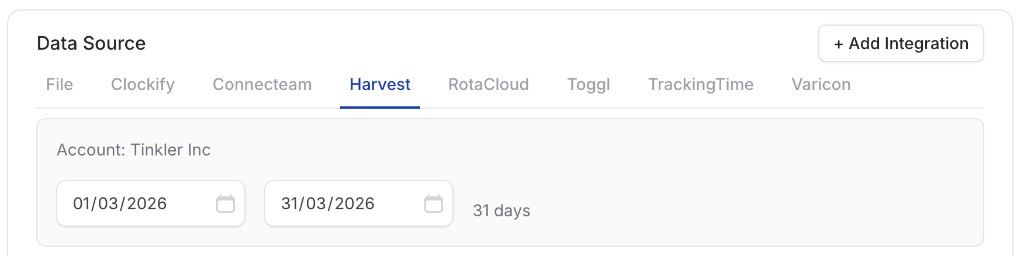
Harvest date selection
1
Select the date range
Select the From and To dates you want to import. UpSheets imports all Harvest time data in that range, including both the From and To dates.
2
Select transaction types
Select the transaction types and any other import options (or accept the defaults). Click Import Data to proceed.
You can import the data as Timesheets, Leave or Payslips. If you use start/end times in Harvest, these can be used with Smart Formulas.
3
Map columns
Imported columns follow the Harvest definition – select the columns that map to name, type, hours, date, description, and so on. See Validate options for field details. Click Validate to continue.
4
Validate
UpSheets validates your data.
5
Upload
Click Upload to send your data to Xero Payroll.