

Upload Subway Live IQ Data to Xero Payroll

Subway Live IQ Labour with UpSheets
- Easy to set up and use
- Export from Live IQ and upload to Xero
- Includes the Fast Food Industry Award (FFIA)
- Lets you assign awards to employees
- Supports automatic calculations, overtime, and allowances
- Works across multiple locations on a single account
- Includes a 30-day free trial
Follow the Subway Live IQ workflow
If you are using Subway LiveIQ Labour to roster your staff, your data can be exported and uploaded to Xero using UpSheets in just a few clicks. This guide explains the steps required to get started:- Register for an UpSheets Account
- Configure settings in UpSheets
- Assign awards to employees
- Extract file from Subway LiveIQ Labour
- Validate the file in UpSheets
- Upload data to Xero
1. Register for an UpSheets Account
You can register for an UpSheets account. No credit card is required and it is free to use for 30 days. You can either create an account using your email address, or log in using your Xero account. After creating your account, you will be asked to connect UpSheets to Xero. This requires a Xero account with Payroll Administrator access and only needs to be done the first time you use an organisation. We recommend using a free Xero demo organisation to try things out.2. Configure Settings in UpSheets
To import the Subway LiveIQ export file without modifying it, configure your settings as shown below:Enable Smart Formulas
Select Settings from the menu. Select Enable Smart Formulas and click Save.
Enable Smart Formulas in UpSheets
Set Default Start Time
A new Start Hour option will now be available. This value is used to calculate start and end times using the single hours column from the export. For example:
Set the Start Hour value for your operation and Save.

Start Hour setting for Smart Formulas
3. Assign Awards to Employees
To determine the correct earnings rate and automatic allowances, each employee must have the required smart formula assigned.This assignment creates a Pay Item in Xero and updates the employee pay template and ordinary earnings rate to use it.
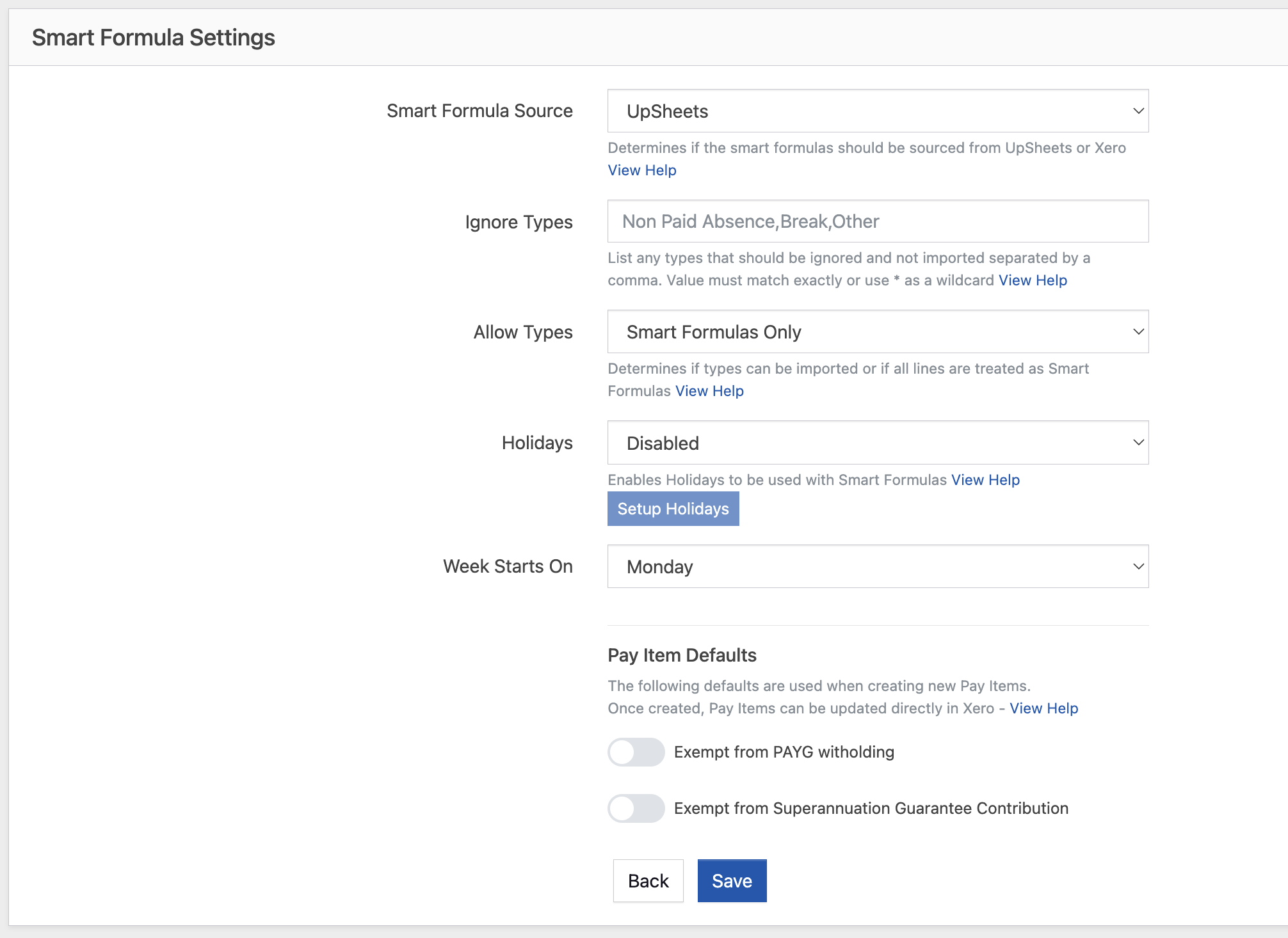
Smart Formula settings
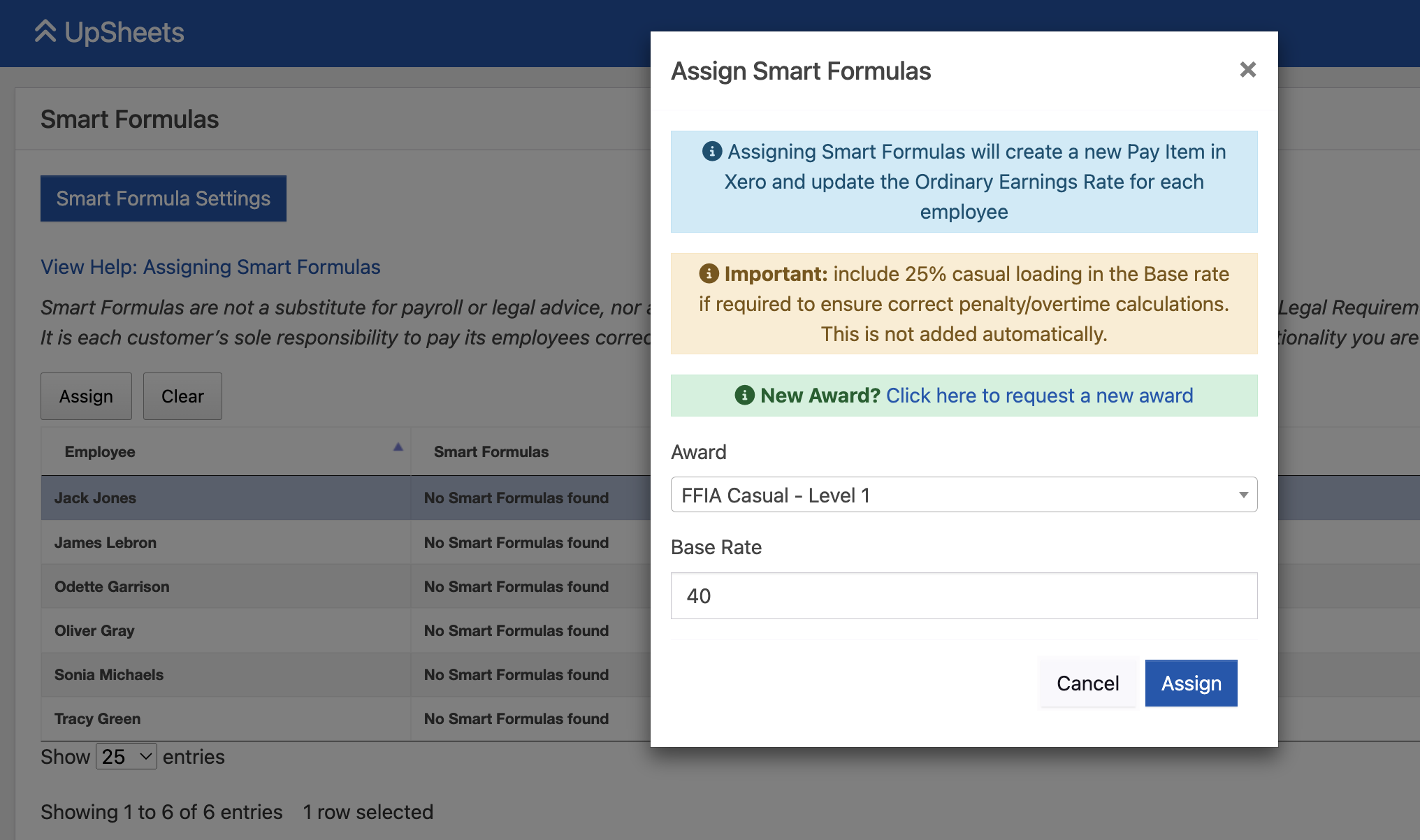
Assign FFIA Smart Formula to employees
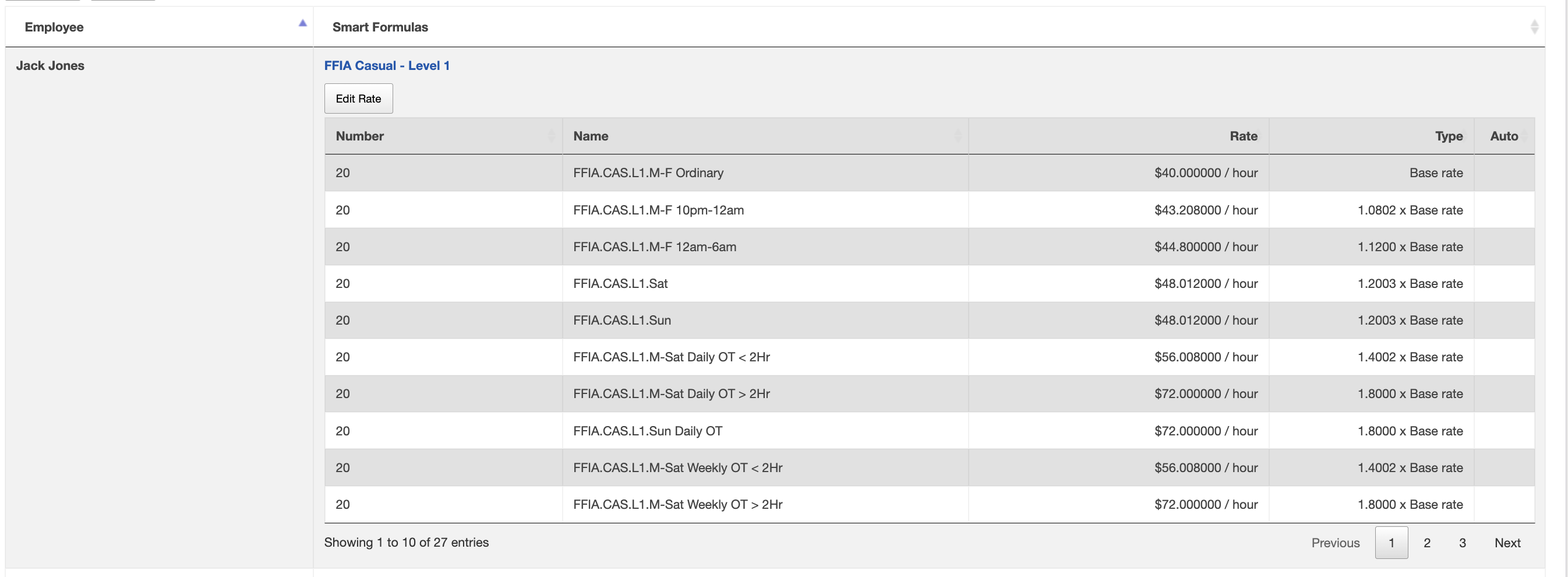
Assigned FFIA Smart Formula
4. Extract File from Subway LiveIQ Labour
The steps below assume you are using Subway Live IQ Labour as your rostering program and have already created and published a roster for your stores. If you are unsure or just getting started, contact your Business Consultant for help.- Log in to Subway Live IQ Labour.
- Go to Payroll - Processing.
- Action your team members’ hours to be paid by timesheet or roster, as required.
- Once this is done and no errors are shown, click Save, then Finalise at the bottom of the page.
- Return to the Payroll Processing screen and click Process.
- Go to Payroll - Breakdown.
- At the bottom of the page, click Accounting Software Export (CSV).
- This is saved into Downloads (or choose where to save it). If you resave this file, ensure it is saved as a CSV file.
If you are unsure how to do any of the above tasks, contact your Business Consultant for help.
5. Validate the File in UpSheets
From the Import screen in UpSheets, select your exported file and the Timesheets option and click Import File: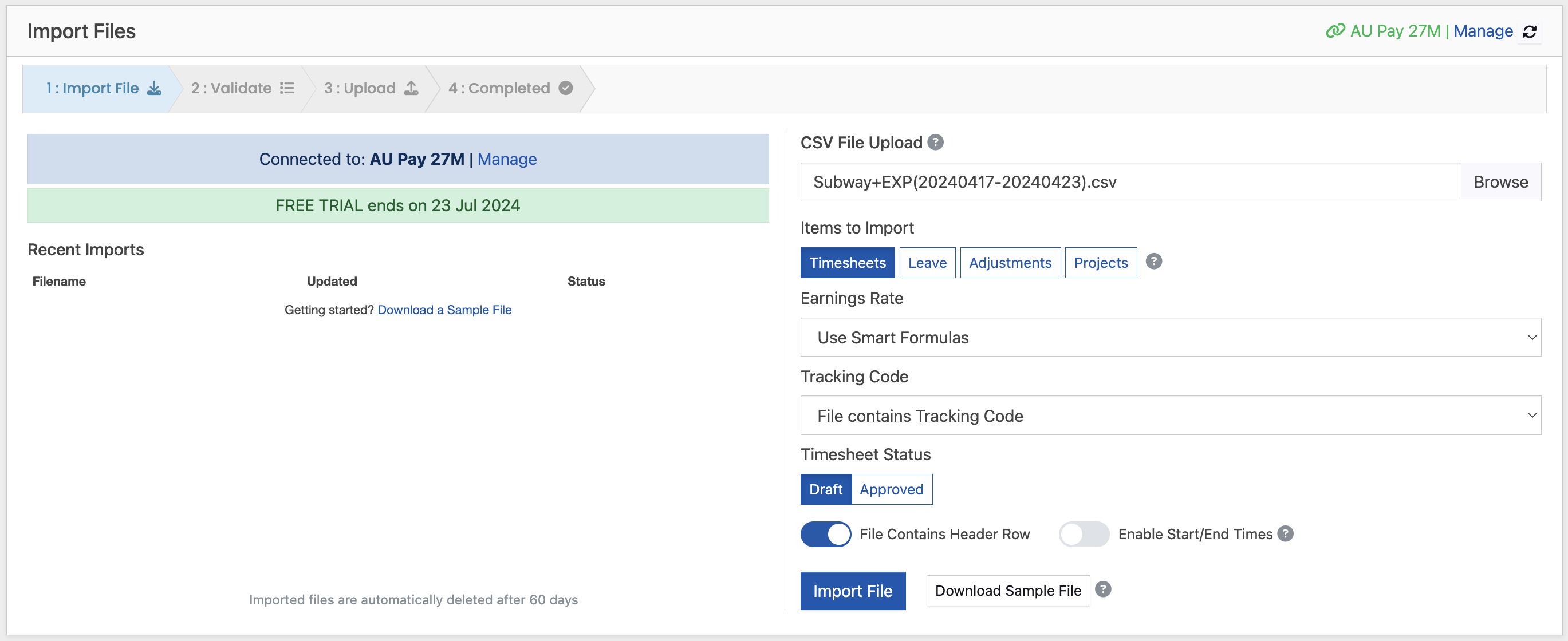
Subway import screen in UpSheets
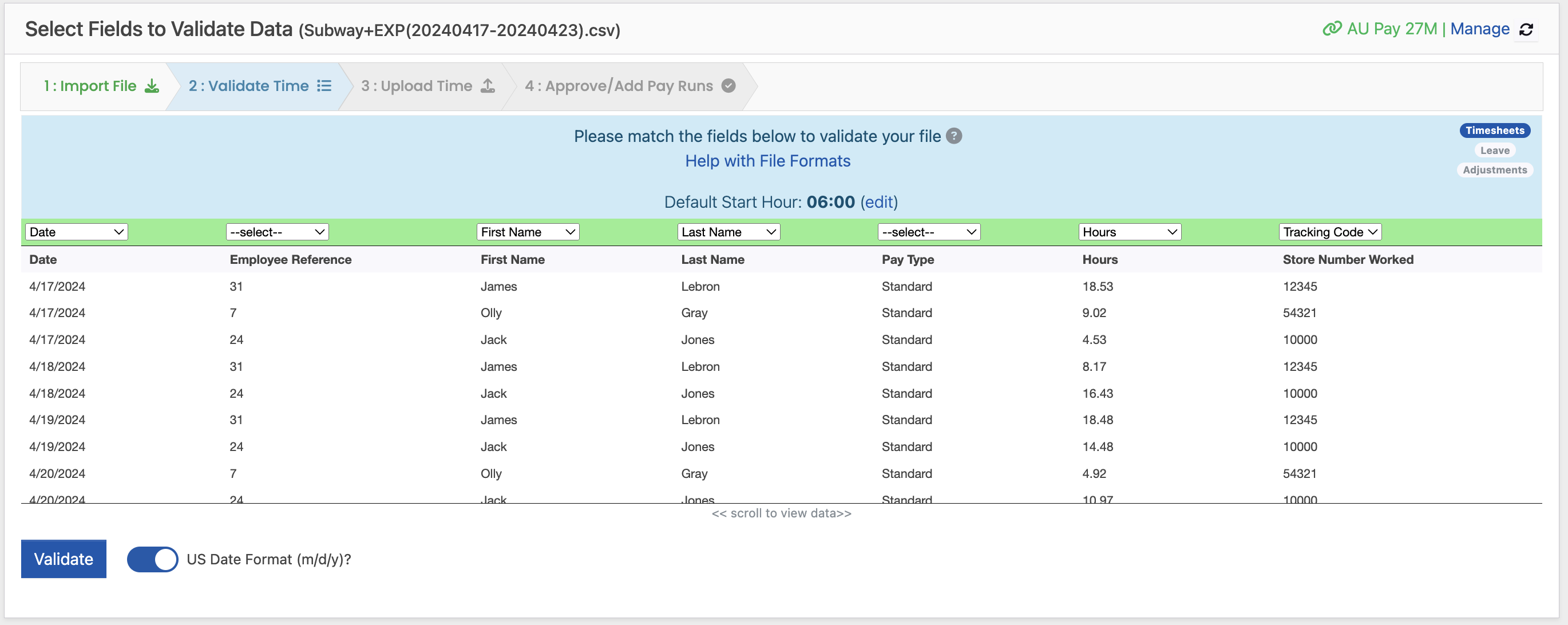
Subway data validated
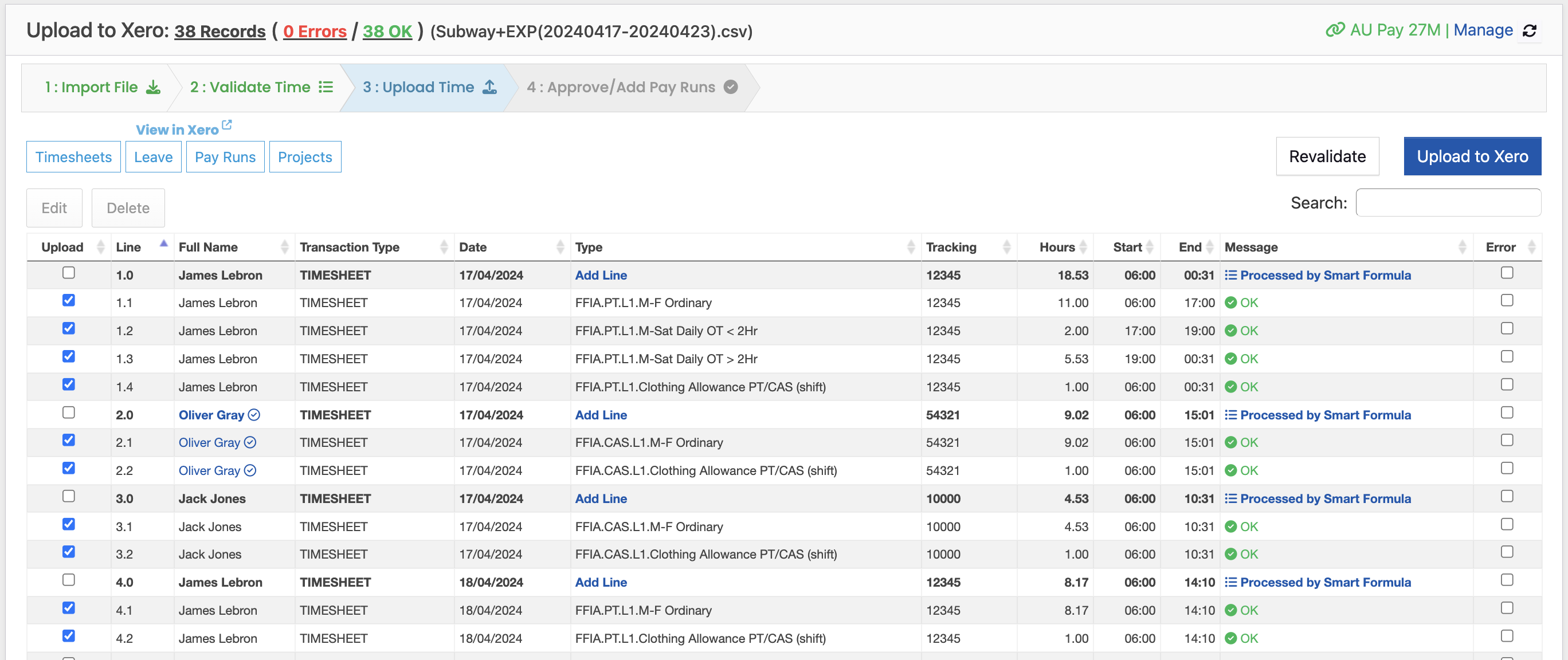
Upload Subway data to Xero
6. Upload Data to Xero
Once complete, click Upload to Xero. Any required pay items are created and the timesheet data is uploaded to Xero.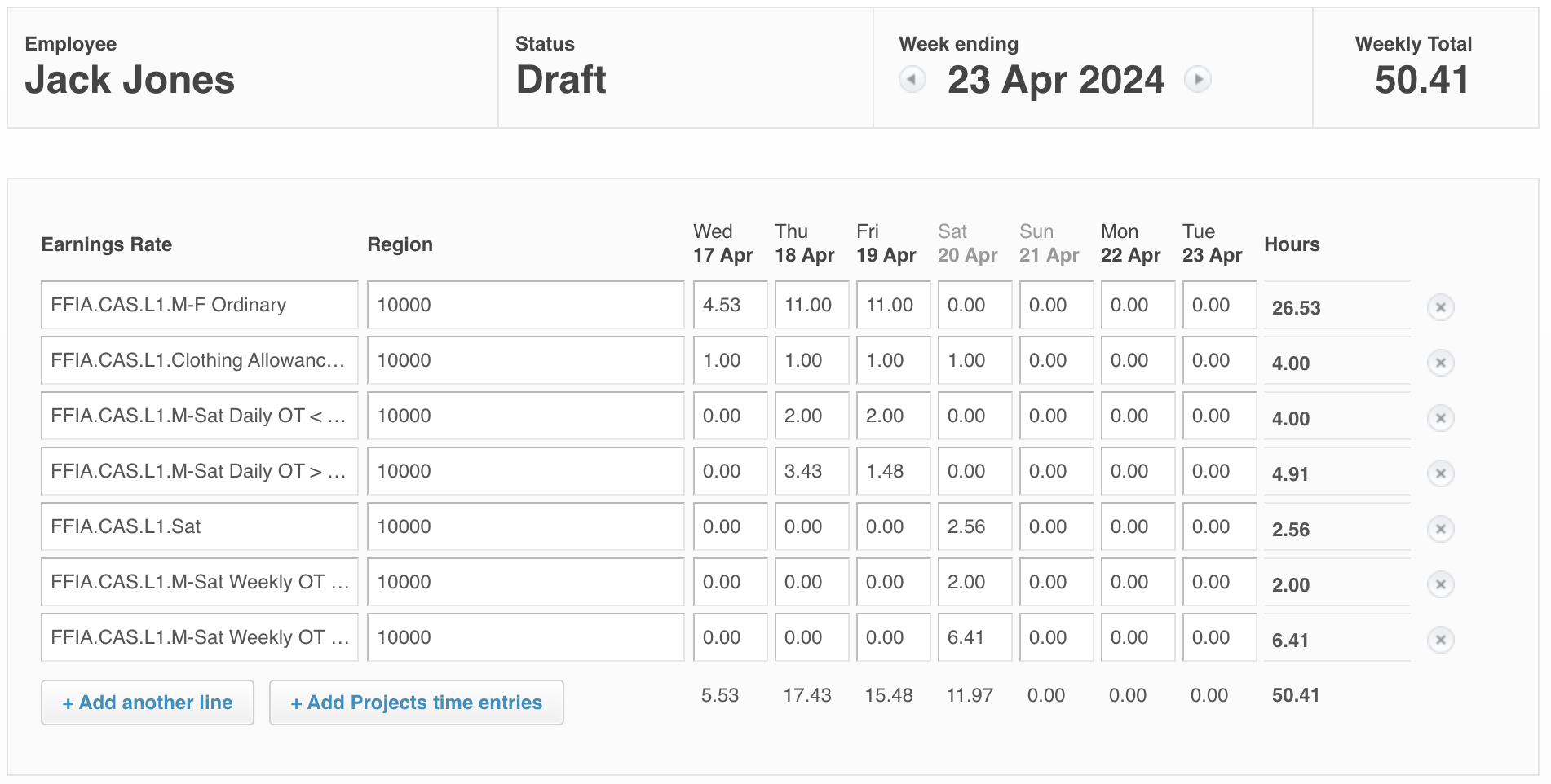
Subway data in Xero Payroll